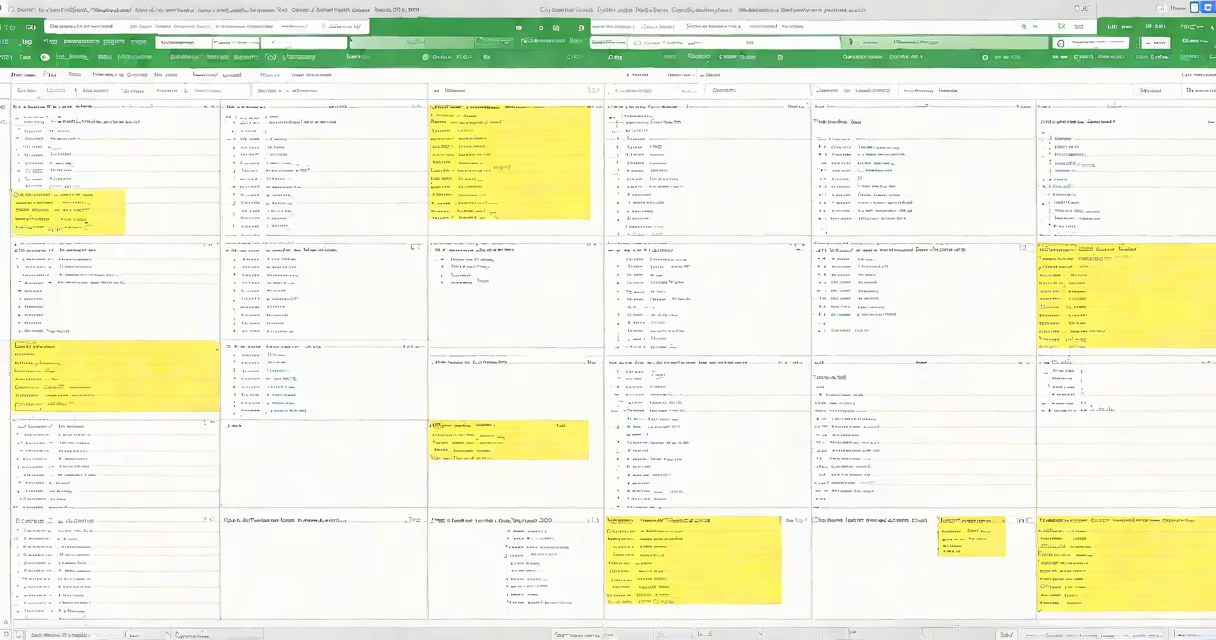
A Google Sheets Kanban is a visual task management system built within Google Sheets, using columns to represent workflow stages and cards to represent tasks. It mimics physical Kanban boards but leverages spreadsheet functionality for tracking and analysis.
Kanban boards in Google Sheets use a grid layout where each column represents a stage in your workflow (e.g., "To Do," "In Progress," "Done"). Tasks are listed as rows, moving horizontally across columns as they progress. Unlike dedicated Kanban tools, Google Sheets Kanban allows for additional data tracking, such as deadlines, priorities, and assignees, in adjacent columns.
For example, a team might create a marketing campaign board with columns for "Ideation," "Drafting," "Review," and "Published." Each task card (row) includes details like due dates, responsible team members, and status updates. The simplicity of the setup makes it accessible even for teams unfamiliar with specialized project management software.
The core elements of a Google Sheets Kanban include:
Google Sheets Kanban is ideal for small teams or projects that require flexibility without the complexity of dedicated project management tools. It integrates smoothly with other Google Workspace apps, allowing for easy collaboration and real-time updates. Teams can also use formulas and pivot tables for advanced reporting, something not possible with standalone Kanban apps.
For instance, a startup might use Google Sheets Kanban to manage product development. By tracking each feature request through stages from "Backlog" to "Implemented," the team gains visibility into the development pipeline. The ability to sort, filter, and analyze tasks with spreadsheet functions adds another layer of utility.
Many assume Google Sheets Kanban lacks the advanced features of tools like Trello or Asana. However, with add-ons and custom scripts, it can replicate many of these functionalities. For example, you can automate task movement between columns using Google Apps Script, creating a semi-automated workflow.
Another misconception is that it's only suitable for simple projects. In reality, teams have used Google Sheets Kanban for complex workflows, including software development sprints and content calendars. The key is structuring the sheet to match the project's needs, which may involve multiple tabs for different aspects of the workflow.
I've used Google Sheets Kanban to manage editorial calendars, where each article moves from "Pitch" to "Draft" to "Published." The ability to add notes, track revisions, and set deadlines in the same interface streamlined the process. While it required initial setup, the flexibility paid off in long-term efficiency.
Google Sheets Kanban offers a balance of simplicity and functionality, making it a useful tool for teams looking to manage projects without investing in expensive software. Its adaptability ensures it can grow with your team's needs, whether for personal task tracking or collaborative project management.