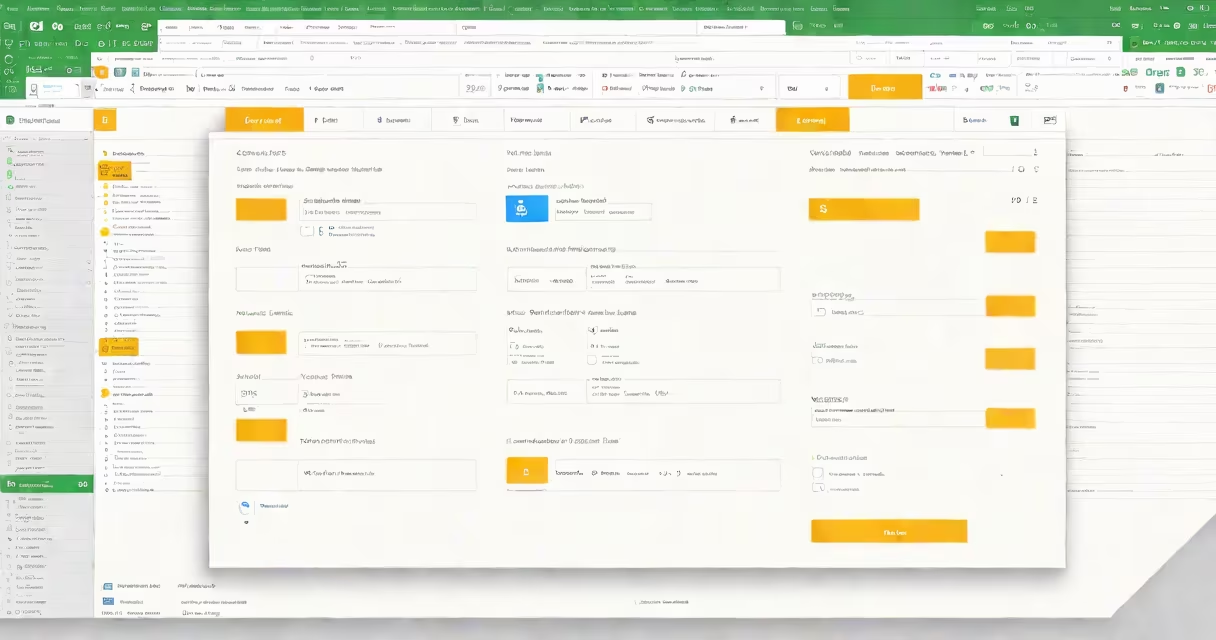
Checklists in Google Sheets use checkboxes tied to individual cells. When checked, the cell value becomes TRUE; unchecked, it's FALSE. This allows sorting, filtering, and even automated follow-ups based on task completion.
For example, a project management team might track progress by checking off tasks as they're completed. The sheet can then calculate the percentage of tasks done automatically.
| Type | Use Case | Key Features |
|---|---|---|
| Simple Task List | Personal to-do lists | Checkboxes, basic formatting |
| Project Tracker | Team projects | Checkboxes, conditional formatting, multiple columns |
| Inventory Checklist | Stock management | Checkboxes, data validation, formulas |
Checklists appear in project management, inventory tracking, and personal organization. They reduce errors by ensuring consistent processes. For instance, a restaurant might use a checklist to verify each table is set correctly before opening.
Many confuse checklists with simple bullet-point lists. However, Google Sheets checklists use checkboxes for interactive tracking, unlike static text lists.
One frequent error is forgetting to protect the checklist from accidental edits. To fix this, go to Data > Protected ranges and set permissions.
Another mistake is not using data validation. For example, adding dropdown menus for task priorities alongside checkboxes creates a more functional system.