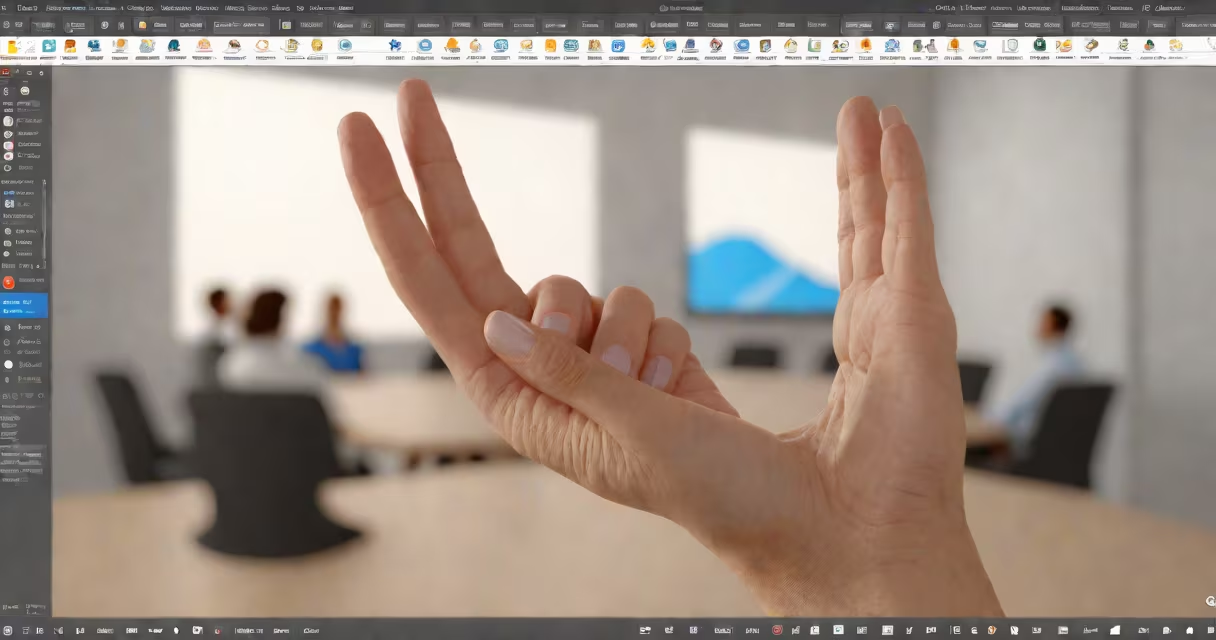
To raise your hand in a Zoom meeting, click the "Participants" button in the meeting controls, then select "Raise Hand" from the menu. This sends a visual indicator to the host that you'd like to speak.
The raise hand feature in Zoom aims to help orderly discussions in virtual meetings. When you raise your hand, the host sees a hand icon next to your name in the participants list. This allows them to acknowledge you without interrupting the current speaker.
There are two primary ways to raise your hand in Zoom:
Use the raise hand feature when you want to:
This feature is particularly useful in large meetings where many participants might want to speak at once. According to Zoom's usage statistics, this feature is used in over 5 million meetings daily to manage participant interactions.
Many users confuse the raise hand feature with other functions:
| Feature | Raises Hand | Other Functions |
|---|---|---|
| Visual Indicator | Shows hand icon next to your name | Does not make any sound |
| Host Notification | Alerts host only | Does not interrupt ongoing speech |
| Multiple Hands | Only one hand can be raised at a time per participant | Unlike chat messages which can be sent continuously |
According to Zoom's support documentation, the raise hand feature was implemented specifically to address the challenge of managing participant interactions in large virtual meetings, where traditional methods like waving or shouting wouldn't work.
During a company-wide Zoom meeting with 500 attendees, you notice an important point wasn't addressed in the presentation. Here's how to use the raise hand feature effectively:
Pro tip: If you're using Zoom on a mobile device, the raise hand option is located in the "More" menu (represented by three dots) in the participants list.