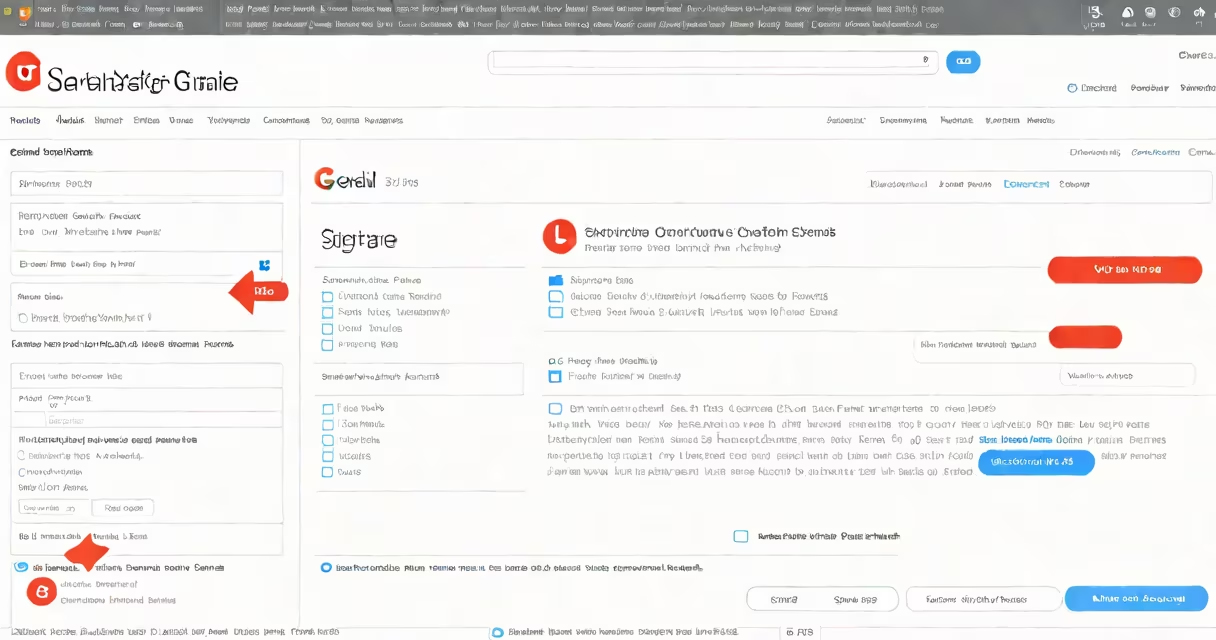
A Gmail signature is a block of text, images, or links automatically added to the end of your emails. To create one, go to Settings > See all settings > General > Signatures.
Signatures appear below your composed messages. You can have multiple signatures and switch between them. Gmail supports rich text formatting, images, and clickable links.
| Type | Description | Example Use Case |
|---|---|---|
| Simple Text | Plain text with basic formatting | Quick personal notes |
| Formatted Text | Bold, italics, colors, and fonts | Professional business emails |
| Image-Based | Logos or graphics | Company branding |
| Clickable Links | Hyperlinks to websites | Portfolio or social media |
Signatures are essential for professional communication. They save time by auto-inserting contact details. A well-designed signature enhances your brand. According to HubSpot, 63% of professionals consider email signatures important for business.
I use a signature with my name, title, company, and a call-to-action link. This ensures consistency across all my business emails.
Many users think signatures are only for formal emails. However, they're useful for personal messages too. Another myth is that images can't be added, but Gmail supports them. Just ensure the image size is under 5MB.
Keep your signature concise. Include only essential information. Use a readable font size and color. For images, ensure they're optimized for email. Learn more about adding images to your signature.