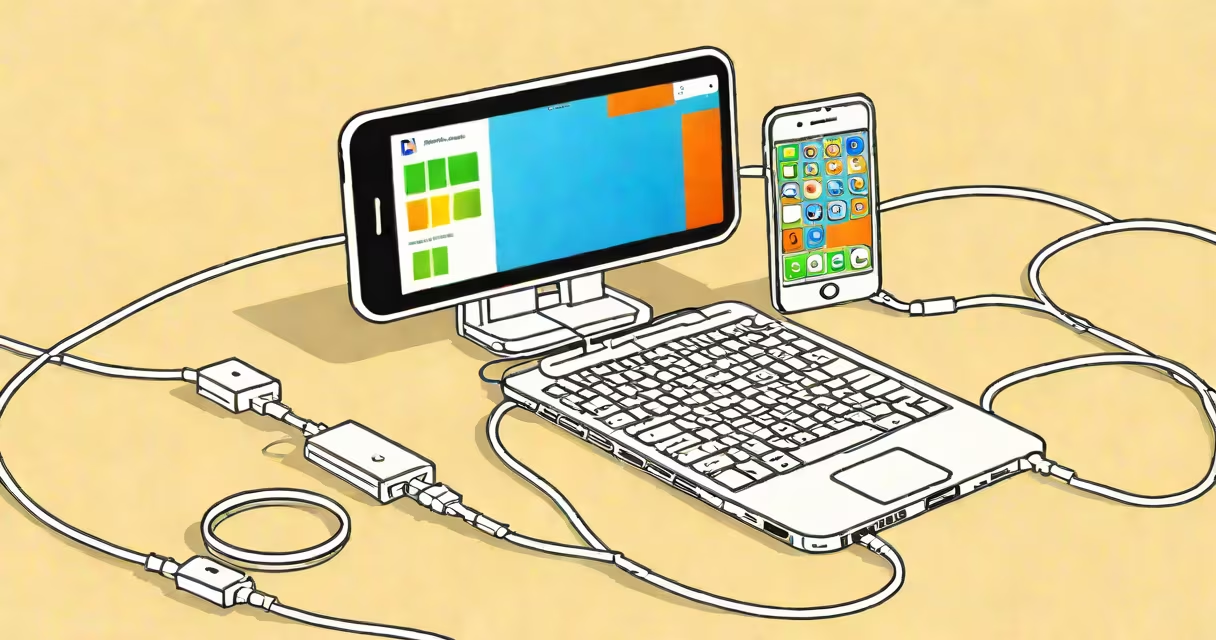
iPhone to Windows file transfer moves photos, videos, documents, and other data from an iOS device to a Microsoft Windows computer using wired connections, wireless protocols, or cloud services.
Most transfers require Apple's proprietary software or third-party apps to bridge the gap between iOS and Windows operating systems. The process typically involves connecting the devices physically or through a network, then using software to locate and move files.
| Transfer Method | Connection Type | Typical Speed | Setup Complexity |
|---|---|---|---|
| USB Cable | Wired | Fast (up to 480 Mbps for USB 2.0) | Low |
| Wi-Fi | Wireless | Moderate (varies by network) | Medium |
| Cloud Services | Internet | Variable (depends on upload speeds) | High |
People typically transfer files from their iPhones to Windows PCs to free up storage space on their mobile devices, back up important data, or edit files on more useful computers. For example, photographers often move high-resolution images from their iPhones to Windows computers for professional editing before sharing them online.
According to Apple Support, over 1 billion active iOS devices exist worldwide, many of which need occasional file transfers to computers running different operating systems. The most common files transferred include:
This is the most straightforward method. Connect your iPhone to your Windows PC using a Lightning-to-USB cable. Your computer should recognize the device automatically. If not, you may need to install iTunes or other software first. Once connected, you can access your iPhone's files through File Explorer.
For photos specifically, you can use the Windows Photos app or import them through File Explorer. This method is generally faster than wireless options, especially for large files or batches of photos.
Several apps enable wireless file transfers between iPhones and Windows PCs. Popular choices include:
These apps typically create a direct Wi-Fi connection between devices, allowing you to send files without using cellular data or a traditional network.
Services like iCloud, Google Drive, and OneDrive offer cross-platform compatibility, making them ideal for transferring files between iPhones and Windows PCs. You can upload files from your iPhone to the cloud service and then download them on your computer.
While convenient, this method requires sufficient cloud storage space and a stable internet connection. It's also slower than wired transfers for large files.
Many people assume that iPhones can only transfer files to Macs, but Windows PCs can handle these transfers just as effectively with the right tools. Another misconception is that you need expensive software for basic transfers - free options like iTunes and built-in Windows apps work well for most needs.
One non-obvious fact is that some wireless transfer methods can actually be faster than wired transfers if your network has high bandwidth and low latency. However, this depends on many factors and isn't always the case.
To transfer photos from your iPhone to a Windows PC:
This process typically takes a few minutes for standard photo collections. For larger collections, you might want to transfer them in batches to avoid overwhelming your computer's memory.
Use wired transfers when:
Use wireless transfers when:
Use cloud storage when: