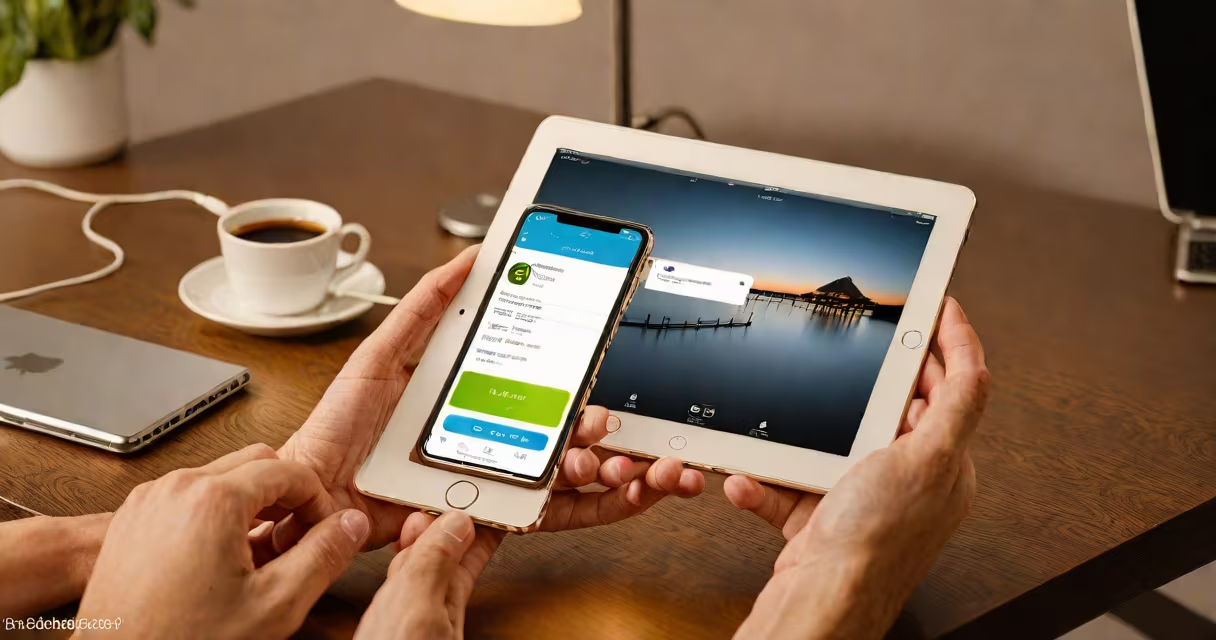
Sharing Wi-Fi from an iPhone to an iPad involves turning the iPhone into a personal hotspot, allowing the iPad to connect via Wi-Fi, cellular data, or Bluetooth. This feature is useful when the iPad lacks direct internet access.
The iPhone uses its cellular data connection to create a portable Wi-Fi network. The iPad connects to this network, effectively sharing the iPhone's internet connection. This process requires both devices to be signed in to the same Apple ID and have Bluetooth enabled for smooth setup.
There are three ways to share Wi-Fi from an iPhone to an iPad:
This feature is particularly useful when traveling, in areas with poor Wi-Fi coverage, or when setting up a new iPad without immediate access to a Wi-Fi network. It ensures uninterrupted internet access for tasks like downloading apps, browsing, or streaming.
To share Wi-Fi from an iPhone to an iPad:
Apple's automatic setup feature simplifies the connection process. When both devices are signed in to the same Apple ID and have Bluetooth enabled, the iPad will automatically recognize the iPhone's hotspot and connect without manual password entry.
I tested this feature while traveling abroad, where local Wi-Fi was unreliable. By enabling the personal hotspot on my iPhone, my iPad maintained a stable connection for navigation and communication.