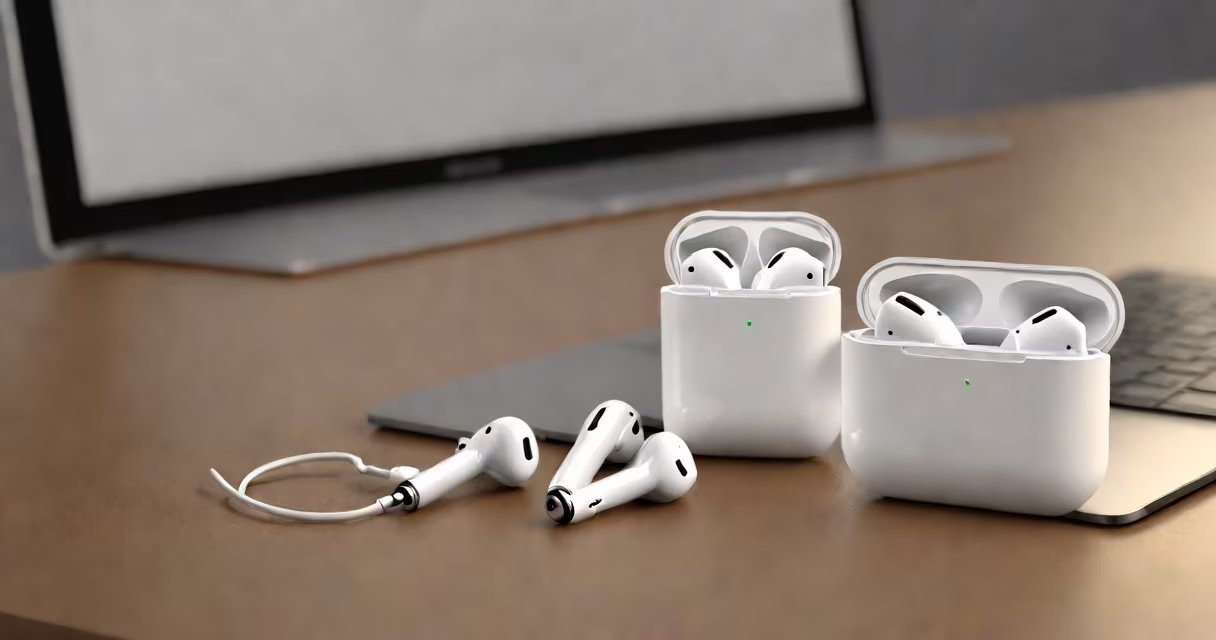
Yes, AirPods can connect to PCs running Windows 10 or later using Bluetooth. The process is straightforward, though some features may differ from their iOS counterparts.
To connect your AirPods to a PC, follow these steps:
There are three main types of AirPods:
| Type | Description | PC Compatibility |
|---|---|---|
| AirPods (1st generation) | Original model with wired charging | Compatible |
| AirPods (2nd generation) | Wireless charging option added | Compatible |
| AirPods Pro | Active Noise Cancellation and Transparency mode | Compatible |
If your AirPods won't connect to your PC, try these troubleshooting steps:
While AirPods work well with PCs, some features available on iOS devices are not supported. For example, automatic switching between devices and hands-free "Hey Siri" commands are not available on Windows PCs., the battery status of your AirPods may not display accurately on your PC.
In my experience, ensuring both the AirPods and the PC are updated to the latest software versions has resolved most connectivity issues. It's also helpful to keep the AirPods case nearby during the initial setup process to ensure a stable connection.