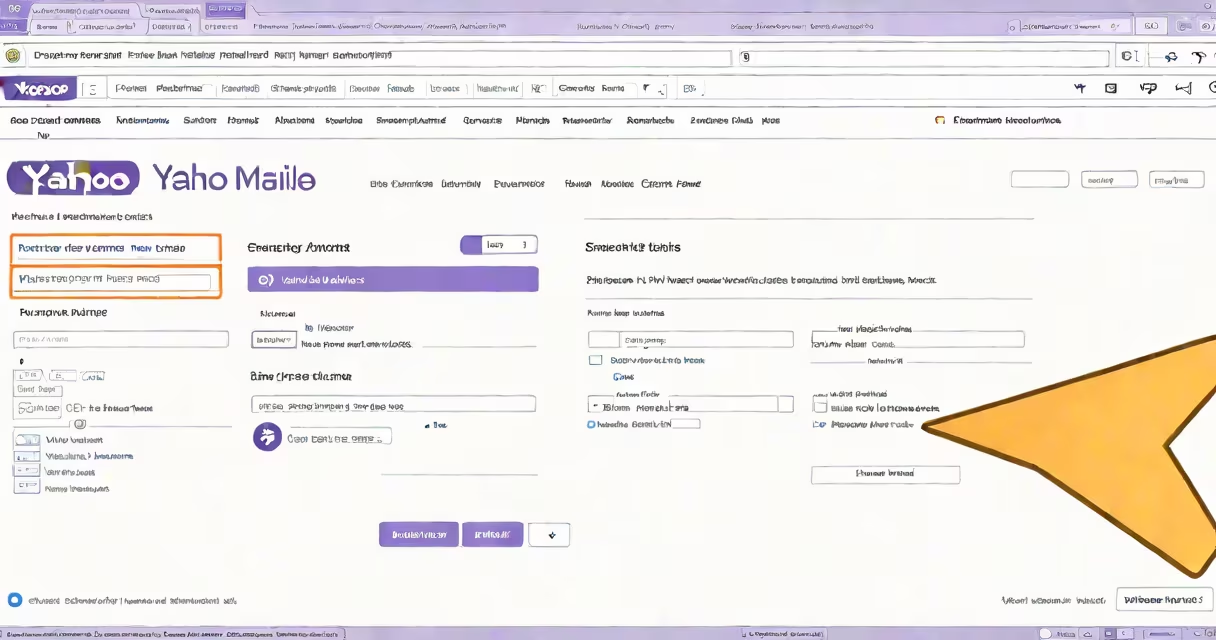
Changing your Yahoo email signature lets you update contact details, branding, or formatting. You can create multiple signatures for different purposes.
Log in to your Yahoo Mail account. Click the gear icon in the upper-right corner and select "Settings" from the dropdown menu. In the left sidebar, click "Writing email" and then "Signature."
Delete the existing text and format your new signature. Use the toolbar to adjust fonts, colors, and styles. Add images or links if needed. Click "Save" to apply changes.
| Type | Description | Example Use Case |
|---|---|---|
| Professional | Includes name, title, company, and contact info | Business communications |
| Casual | Brief and informal | Personal emails |
| Marketing | Promotional content with calls-to-action | Newsletters or sales pitches |
Use professional signatures for work-related emails. Casual signatures work for personal messages. Marketing signatures help promote products or services.
Many professionals use different signatures for different projects or departments. For example, a marketing manager might have one signature for client communications and another for internal team emails.
One mistake is making signatures too long or image-heavy, which can trigger spam filters. Another error is not updating contact information regularly, leading to outdated details in sent emails.
Yahoo Mail allows up to 10,000 characters in signatures, but best practices recommend keeping them under 1,000 characters for readability. Images should be small file sizes to avoid slow loading times.
I manage multiple email identities for different projects. Creating separate signatures for each helps maintain consistency while allowing for project-specific information. To set up multiple signatures, repeat the process above for each identity in your Yahoo Mail account.
When composing a new email, select the appropriate signature from the dropdown menu in the signature editor. This ensures you're always using the correct version for each communication.