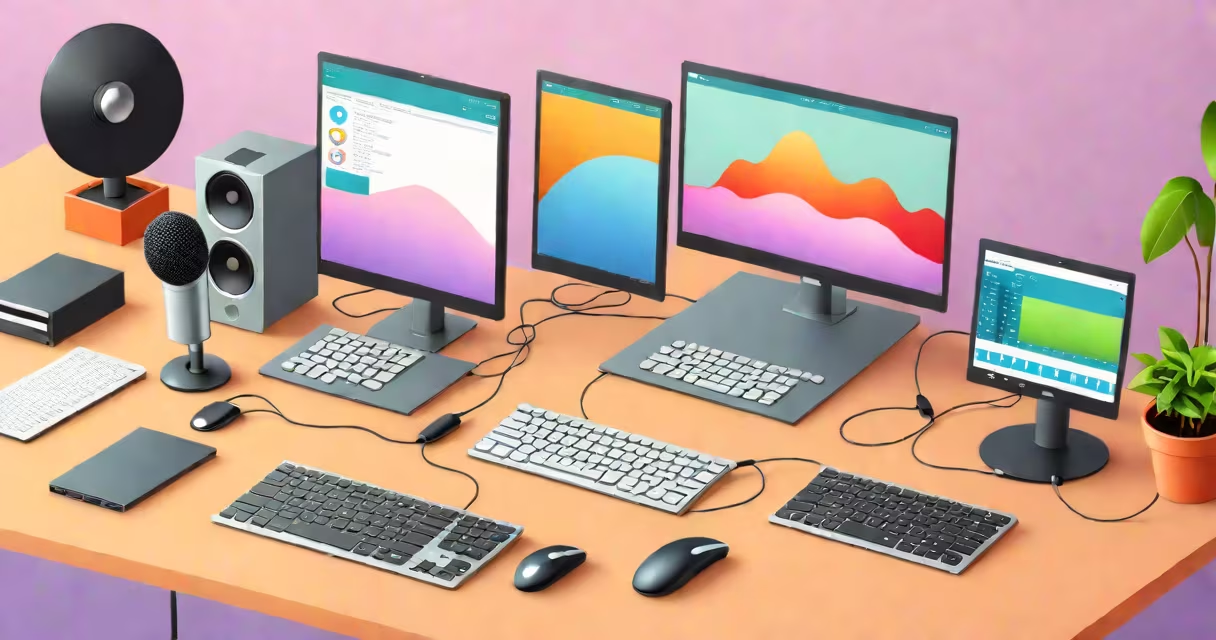
Desktop recording software captures your screen activity, audio, and webcam footage for tutorials, presentations, or gameplay. These programs record everything displayed on your monitor, along with microphone input and system audio, creating video files you can edit and share.
Most desktop recording software operates through a combination of screen capture technology and audio processing. The program accesses your graphics card output to record visual elements while simultaneously capturing audio inputs. Some advanced tools use hardware acceleration to reduce CPU load during recording.
| Type | Primary Use Case | Key Features |
|---|---|---|
| General Screen Recorders | Basic screen capture | Simple interface, limited editing |
| Game Capture Software | Gaming footage | High frame rates, game-specific optimizations |
| Professional Video Editors | Production-quality videos | Advanced editing tools, multi-track recording |
Businesses and individuals use desktop recording software for various purposes:
While the terms are often used interchangeably, there are key differences between desktop recording software and screencast software. Desktop recording software typically focuses on capturing raw screen activity, while screencast software includes built-in editing tools and annotations for creating polished presentations.
When selecting desktop recording software, consider factors like resolution support, frame rate options, and whether you need webcam integration. For professional use, look for software that supports 4K recording and offers extensive editing capabilities.
I once needed to create a detailed software tutorial for my team. After testing several options, I chose a program that supported 1080p recording at 60 frames per second with minimal lag. The ability to record system audio separately from my microphone input proved invaluable for maintaining clear narration throughout the tutorial.