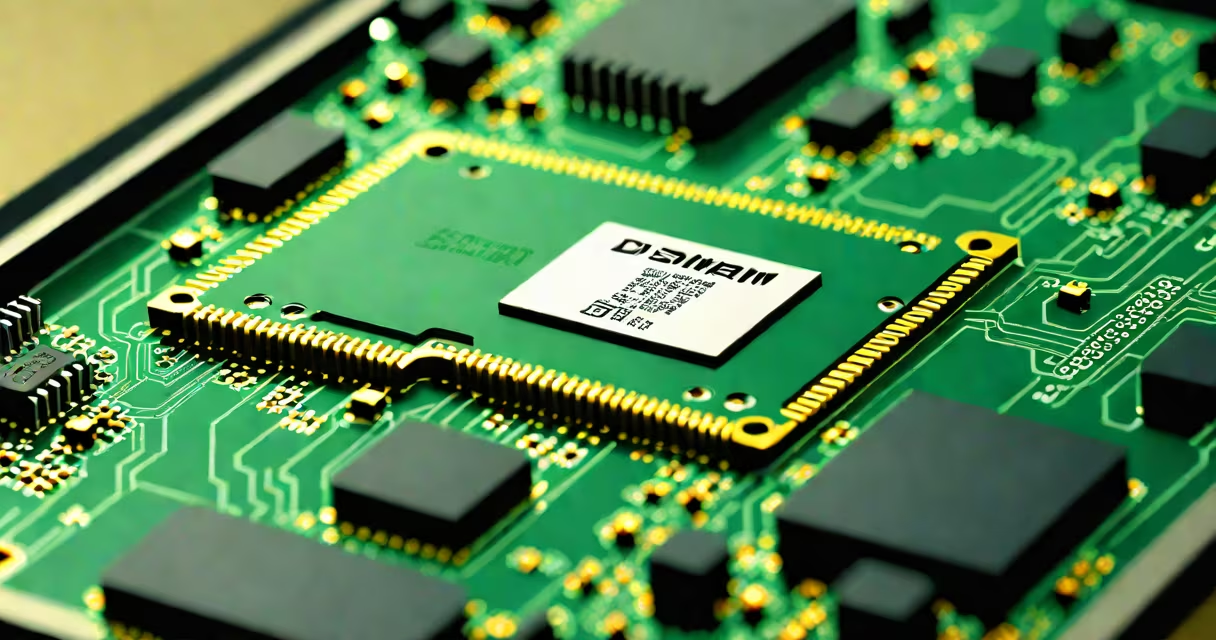
DIMM RAM (dual inline memory module) is a type of computer memory that stores temporary data for faster processing. These small circuit boards plug into slots on a motherboard to provide short-term storage for active programs.
DIMM RAM modules connect to the CPU via the motherboard's memory controller. When you launch software, the operating system loads relevant data from storage into RAM. The CPU then accesses this data much faster than it could from a hard drive or SSD.
Each DIMM contains multiple memory chips arranged in pairs. When the system requests data, these chips work together to retrieve it quickly. Unlike older SIMM (single inline memory module) designs, DIMMs have separate contacts on each side, allowing for higher bandwidth.
| Type | Key Feature | Common Use |
|---|---|---|
| DDR (double data rate) | Transfers data twice per clock cycle | Older systems, budget builds |
| DDR2 | Faster than DDR, lower power consumption | Mid-range desktops (2000s) |
| DDR3 | Higher capacity, better efficiency | Mainstream PCs (2010s) |
| DDR4 | Faster speeds, lower voltage | Modern desktops and laptops |
| DDR5 | Doubled bandwidth, improved efficiency | High-performance gaming and workstations |
A common misconception is that RAM speed is the only factor in performance. While speed matters, capacity and latency also play important roles. A 3200MHz DDR4 module with low latency often outperforms a 3600MHz module with higher latency.
DIMM RAM differs from other memory formats like SO-DIMM (small outline DIMM), which is used in laptops, and RDIMM (registered DIMM), which adds error correction for servers. Unlike cache memory (which sits directly on the CPU), DIMM RAM provides larger but slower storage for active tasks.
For instance, a gaming PC might use DDR4 DIMMs for general memory needs while relying on the CPU's cache for immediate data access during gameplay. Servers often use RDIMMs to ensure data integrity in high-demand environments.
When upgrading RAM, check your motherboard's supported types and speeds. Mixing different RAM generations or speeds can cause compatibility issues. For example, installing DDR3 alongside DDR4 won't work because they use different physical connectors and signaling methods.
I once upgraded an older desktop from 8GB DDR3 to 16GB DDR3. The system ran noticeably smoother, especially when running virtual machines. However, trying to install DDR4 in the same machine would have required a new motherboard and CPU.
For most users, DDR4 remains the best balance of cost and performance. DDR5 offers future-proofing for high-end builds, particularly in gaming and content creation. Always verify compatibility before purchasing.
Many people assume that buying the highest-capacity RAM available is always best. However, some applications (like older games) may not use large amounts of RAM efficiently. Similarly, mixing RAM sticks of different sizes or speeds can lead to performance bottlenecks.
Another mistake is ignoring motherboard limitations. Some boards support dual-channel configurations, which require installing RAM in matched pairs for optimal performance. Installing a single high-capacity stick might waste potential speed improvements.
For example, a motherboard supporting dual-channel DDR4-3200 RAM will perform better with two 8GB DDR4-3200 sticks than with a single 16GB DDR4-3200 stick, even though the total capacity is the same.
DDR5 is the current standard for high-performance systems, offering higher bandwidth and lower power consumption. Future versions, like DDR6, may introduce further improvements in speed and efficiency. As processors demand more memory bandwidth, DIMM RAM will continue evolving to meet those needs.
For now, DDR4 remains widely used in consumer systems, while DDR5 is becoming standard in high-end gaming and professional workstations. Choosing the right RAM depends on your system's capabilities and your specific performance requirements.