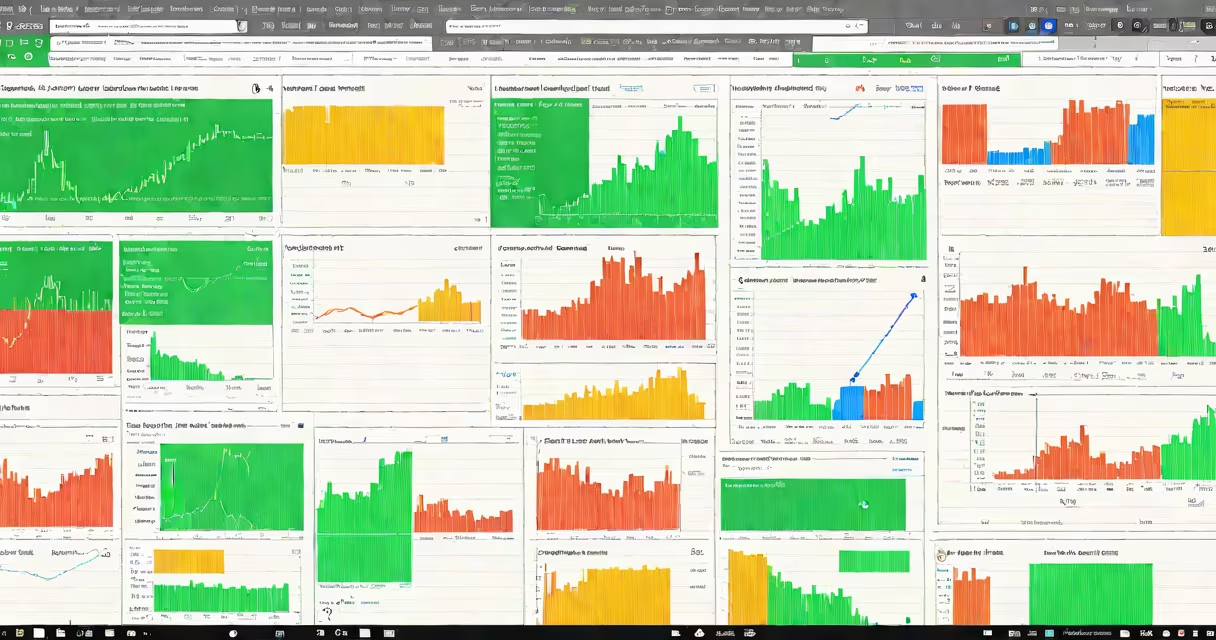
Google Finance formulas are spreadsheet functions that pull live stock market data into Google Sheets. They automate calculations for investors tracking portfolios.
These formulas connect to Google Finance's database through Google Sheets' built-in functions. When you enter a formula, it fetches real-time or historical data for stocks, indices, or currencies.
The core function is =GOOGLEFINANCE(). You specify parameters like ticker symbol, attribute (price, volume, etc.), and date range. The formula returns current or past values.
| Formula Type | Example | Use Case |
|---|---|---|
| Current Data | =GOOGLEFINANCE("AAPL", "price") |
Get Apple's current stock price |
| Historical Data | =GOOGLEFINANCE("MSFT", "price", DATE(2023,1,1), DATE(2023,12,31)) |
Track Microsoft's daily closing prices for 2023 |
| Multiple Attributes | =GOOGLEFINANCE("TSLA", "all", DATE(2023,1,1), DATE(2023,12,31), "DAILY") |
Fetch Tesla's full dataset (open, high, low, close, volume) for 2023 |
Many users confuse =GOOGLEFINANCE() with standard spreadsheet functions. Unlike basic formulas, Google Finance requires specific parameters like ticker symbols and date ranges.
Another mistake is overloading the formula with too many attributes. For example, requesting "price," "volume," and "high" in a single cell won't work. Instead, use separate cells or request "all" for complete datasets.
Investors rely on these formulas to track stock performance, compare assets, and analyze trends. For example, a trader might use =GOOGLEFINANCE("SPY", "close", TODAY()-30, TODAY()) to monitor the S&P 500 ETF's closing prices over the past month.
Google Finance formulas don't support all markets. While they work well for major U.S. exchanges, coverage for international markets or smaller exchanges may be limited.
I once built a dashboard tracking 50 stocks using Google Finance formulas. While it worked well for historical analysis, the delayed updates made it unreliable for day trading.