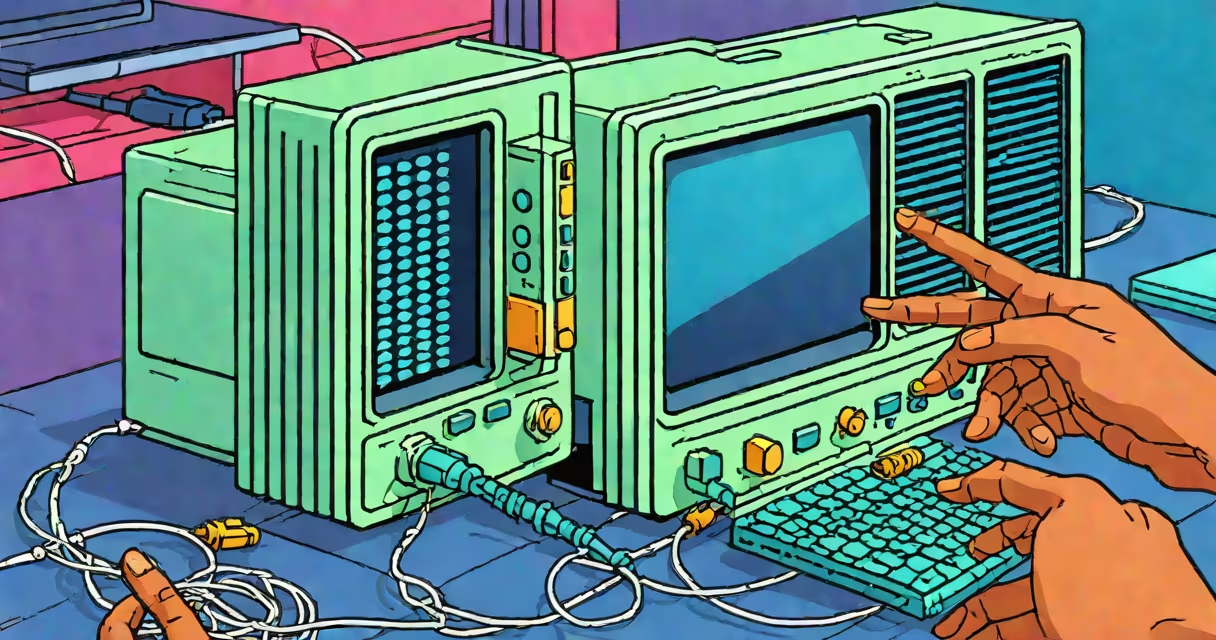
To restore your internet connection, first check if the issue is with your device or the network itself. Power cycle your modem and router, then verify cable connections and test with another device.
Internet connections rely on a series of devices working together: your device, a router, a modem, and your internet service provider (ISP). Data travels from your ISP through the modem, which converts signals for your router to distribute to connected devices. Issues can arise at any point in this chain.
Most home users have either DSL, cable, fiber, or satellite internet. DSL uses phone lines, cable uses coaxial lines, fiber uses light pulses, and satellite uses orbital signals. Each type has different troubleshooting steps due to varying hardware and signal methods.
| Connection Type | Common Issues | First Troubleshooting Step |
|---|---|---|
| DSL | Slow speeds, intermittent connection | Check phone line filters |
| Cable | Complete outages, buffering | Verify coaxial cable connections |
| Fiber | No connection at all | Inspect fiber optic cables for damage |
| Satellite | High latency, weather interference | Check satellite dish alignment |
Unexpected drops often result from overheating routers, loose cables, or ISP outages. Routers placed in enclosed spaces or near heat sources may overheat, causing instability. Loose Ethernet cables or damaged coaxial lines can interrupt signals. ISPs sometimes perform maintenance or experience equipment failures without notice.
A common misconception is that restarting your device fixes all connection issues. While this works occasionally, deeper problems often require checking multiple components. For example, if your laptop loses internet but your phone stays connected, the issue likely lies with the laptop's network settings rather than the router.
Start by verifying the outage isn't widespread. Check your ISP's service status page or contact customer support. If the issue is localized, power cycle your modem and router by unplugging them for 30 seconds, then reconnecting. Wait two minutes for the devices to reboot fully. Next, check all physical connections, including Ethernet cables and coaxial lines. Ensure no damage or loose connections exist.
If the problem persists, test with another device. Connect a smartphone or tablet to the same network. If the second device works, the issue is with your original device. Reset the device's network settings or update its drivers. For persistent problems, factory reset the router by holding the reset button for 10 seconds. Note that this erases custom settings, so you'll need to reconfigure the network afterward.
If none of the above steps work, contact your ISP. Provide details about when the issue started and any error messages displayed. Ask if there are known outages in your area. Some ISPs offer self-service troubleshooting tools online that can diagnose line issues remotely.
I once helped a neighbor whose internet dropped frequently. After checking cables and restarting devices, we discovered their router was placed too close to a space heater. Moving it to a cooler location resolved the issue. This highlights how environmental factors can affect connectivity.
Regularly update your router's firmware to ensure optimal performance. Place routers in open, central locations away from electronic interference. Use Ethernet cables for wired connections when possible, as they provide more stable connections than Wi-Fi. Consider investing in a mesh network system if you have a large home with dead zones.
Understanding how to restore your internet connection saves time and frustration. Most issues stem from simple causes like loose cables or overheating routers. Follow these steps systematically to identify and fix problems efficiently. If the issue persists, consult your ISP for further assistance.