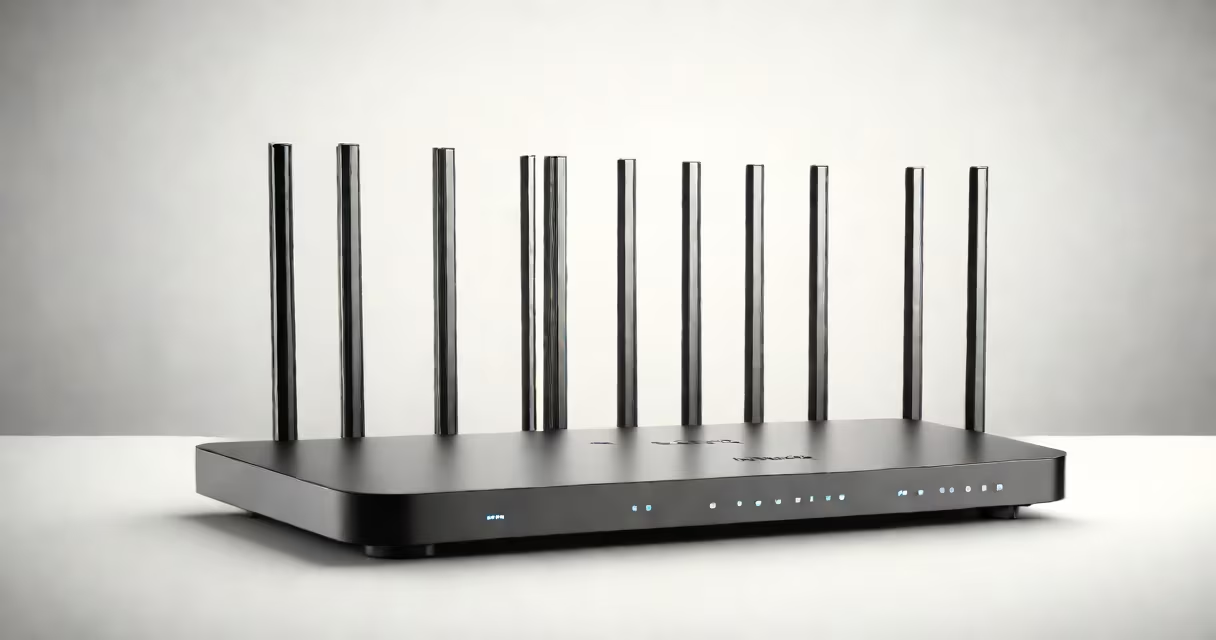
To increase Wi-Fi range, reposition your router, use Wi-Fi extenders, or upgrade to a mesh network system. These solutions address signal attenuation, the primary cause of weak connections.
Wi-Fi signals weaken as they travel through walls, floors, and interference from other devices. A router placed in a central location reduces obstacles, but most homes have dead zones where signals struggle to reach.
The Federal Communications Commission (FCC) regulates Wi-Fi signal strength. Most routers transmit at 100 milliwatts (mW), but signal strength decreases exponentially with distance. A router 10 feet away may have 70% signal strength, but at 50 feet, it drops to 10%.
Wi-Fi extenders, also called repeaters, receive your router's signal and rebroadcast it. They're plugged into an outlet between your router and dead zones. However, extenders create a separate network, which can cause lag during video calls or gaming.
For example, the TP-Link RE605X extends coverage by up to 2,500 square feet. It supports dual-band frequencies (2.4 GHz and 5 GHz), reducing interference. Placing it halfway between your router and dead zones ensures smooth coverage.
| Solution | Coverage Area | Best For |
|---|---|---|
| Wi-Fi Extender | 1,500-2,500 sq ft | Small to medium homes |
| Mesh Network | 3,000-6,000 sq ft | Large homes with multiple floors |
| Powerline Adapter | Varies by electrical wiring | Hard-to-reach areas |
Many people think moving their router higher improves signal strength. While elevation helps in some cases, it's more important to place the router centrally. A router on the ground floor won't effectively cover upstairs bedrooms.
Another myth is that a single extender covers an entire home. Extenders work best in small spaces. For larger homes, a mesh network system, like the Google Nest Wifi, provides consistent coverage by using multiple nodes.
Start by testing your current Wi-Fi coverage. Walk around your home with a smartphone, checking signal strength in different areas. Apps like Wi-Fi Analyzer show weak spots.
Next, reposition your router. Place it in an open area, away from thick walls and appliances like microwaves. If dead zones persist, consider a mesh network. The Netgear Orbi RBK50 covers up to 5,000 square feet with two nodes.
For hard-to-reach areas, powerline adapters use electrical wiring to transmit internet signals. The TP-Link AV1000 Powerline Adapter converts an electrical outlet into an Ethernet port, extending coverage to distant rooms.
I tested the Deco M5 mesh system in a 2,500-square-foot home. The three-node setup eliminated dead zones in the basement and upstairs bedrooms. Setup took 10 minutes via the Deco app, and the system maintained stable speeds across all devices.
If your router is older than five years, upgrading to a newer model with better antennas and dual-band support can improve range. The Asus RT-AX88U supports Wi-Fi 6, offering faster speeds and better coverage than older routers.
Routers with external antennas perform better than those with internal ones. External antennas focus signals in specific directions, reducing interference. The Netgear Nighthawk R7000 has three adjustable antennas for targeted coverage.
If you can't move your router or install extenders, try changing the Wi-Fi channel. Crowded channels cause interference. Use a Wi-Fi analyzer app to find the least congested channel.
Another option is to use Ethernet cables for stationary devices like smart TVs. Wired connections provide faster, more stable speeds than wireless ones. The Ugreen Cat6 Ethernet Cable supports speeds up to 10 Gbps.