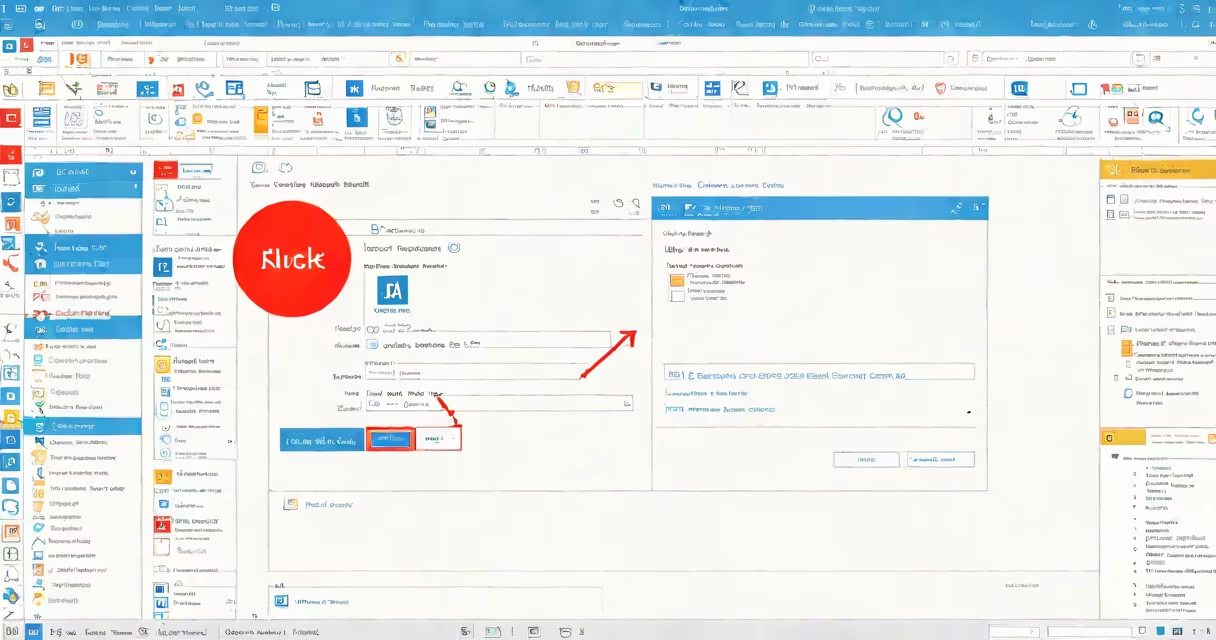
The paragraph symbol (¶) in Outlook appears when "Show Paragraph Marks" is enabled, displaying hidden formatting characters. To remove it, disable this setting.
Outlook uses the paragraph symbol (also called a pilcrow mark) to show where paragraph breaks occur in your email. This feature helps identify formatting issues but can be distracting when composing messages.
To hide the paragraph symbol:
This toggle works in both Outlook for Windows and Outlook for Mac, though the exact button location may vary slightly between versions.
While most users prefer to hide paragraph symbols, they can be useful when:
For example, if your email suddenly has large gaps between lines, enabling paragraph symbols can help you pinpoint where the issue originates.
Many users confuse the paragraph symbol with other formatting marks or try to delete it directly. The symbol itself isn't text you can remove - it's a visual indicator of formatting. Attempting to delete it won't work because it's not actual content in your message.
If you're still seeing unwanted formatting symbols after turning off the paragraph mark display, try these steps:
I once helped a colleague troubleshoot persistent paragraph symbols that kept reappearing. After trying the standard solutions, we discovered their Outlook template was corrupted. Resetting the template to default fixed the issue permanently.
Remember, the paragraph symbol is a helpful tool when you need it, but it's easy to turn off when you don't. Most users find it's best to keep this feature turned off unless they're specifically troubleshooting formatting issues.