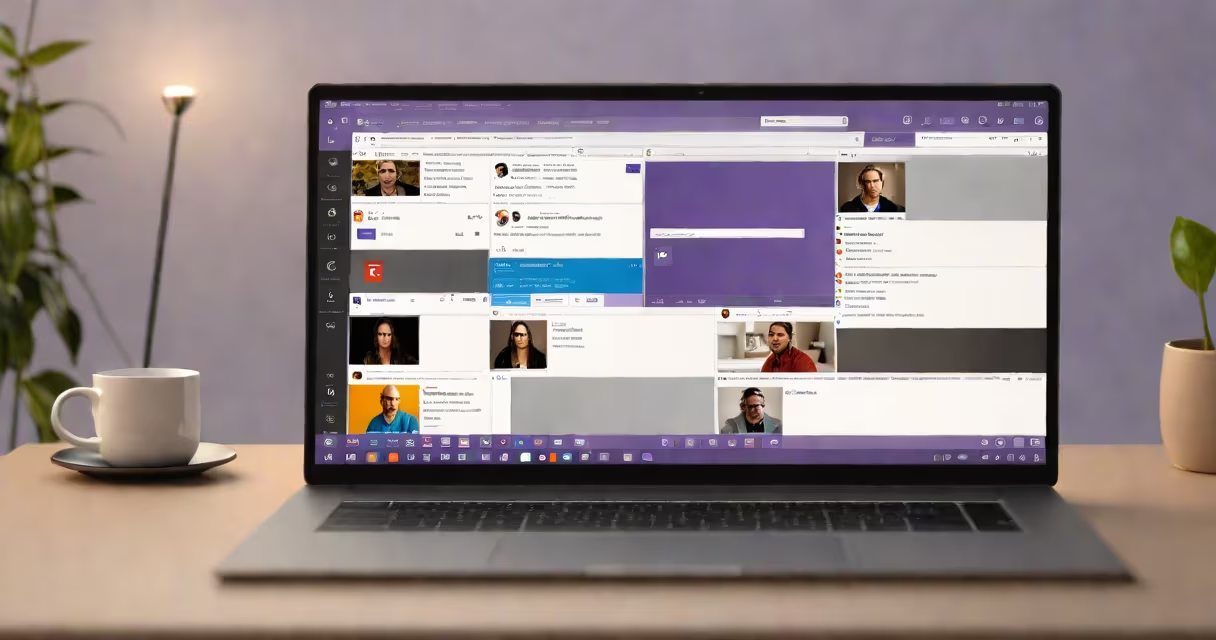
To set up a Teams call, open Microsoft Teams, click "Calendar," then "New meeting," fill in the details, and click "Save." This creates a virtual meeting room others can join.
Teams calls function through Microsoft's cloud-based platform, enabling real-time audio, video, and screen sharing. When you schedule a call, Teams generates a unique link that attendees click to join. The organizer controls who enters and manages the meeting flow.
Teams supports several call types:
Most users rely on scheduled meetings for planning and reminders. Instant meetings work well for quick discussions, while channel meetings keep team conversations organized. Live events suit presentations or announcements to large groups.
Teams calls integrate smoothly with Office 365 apps like Outlook and OneDrive. They support up to 1,000 participants, offer end-to-end encryption, and include features like recording, transcriptions, and breakout rooms. Many organizations prefer Teams for its security and collaboration tools.
For example, a marketing team might use Teams calls to collaborate on campaigns, share creative assets directly from OneDrive, and record strategy sessions for absent members. The platform's integration with other Microsoft products streamlines workflows.
Many users confuse Teams calls with regular phone calls or assume they require Microsoft accounts for all participants. While organizers need a Microsoft account, guests can join via a web browser without signing in., Teams calls aren't limited to video-they support audio-only participation.
Another mistake is believing Teams calls lack phone support. Users can dial into meetings via phone numbers provided in the meeting invite, making it accessible for those without internet.
To schedule a Teams call for a project meeting:
On the meeting day, open Teams and click "Join" when prompted. Ensure your microphone and camera are ready before admitting others.
I once set up a Teams call for a cross-departmental training session with 50 participants. By scheduling it in advance and sending reminders, everyone joined on time, and the session ran smoothly with screen-sharing and Q&A features.