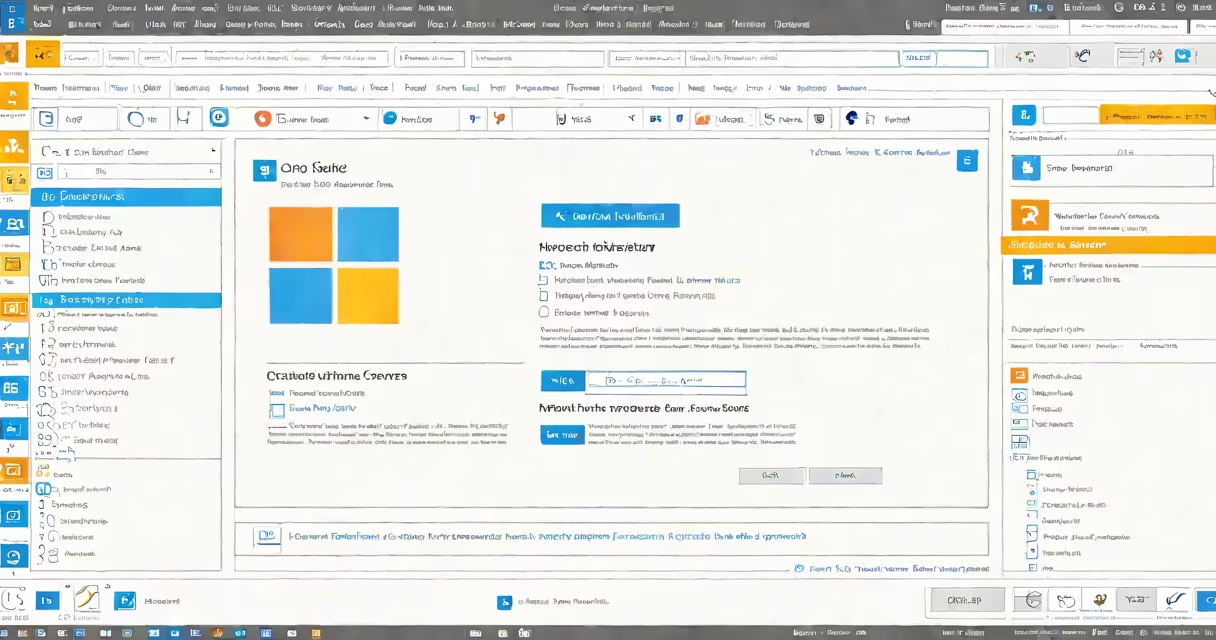
An away message in Outlook automatically replies to incoming emails when you're unavailable. It's essential for maintaining communication during vacations, sick days, or other absences.
Outlook offers two types of away messages: internal (for colleagues within your organization) and external (for contacts outside your company). You can customize each with different messages and time frames.
To create an away message in Outlook:
| Type | Use Case | Example Scenario |
|---|---|---|
| Vacation reply | Extended absence | Two-week summer vacation |
| Sick day notice | Short-term unavailability | Flu recovery period |
| Work-from-home | Remote work days | Weekday working remotely |
| Business trip | Travel for work | Conference attendance |
Away messages don't prevent new emails from being received - they simply respond automatically. The sender's email still arrives in your inbox as usual.
Before setting your away message, send a test email to yourself from a different account. This lets you verify the message appears correctly and the auto-reply functionality works as expected.
When I set up my first away message for a vacation, I forgot to include my return date. Several colleagues asked when I'd be back, demonstrating how important clear information is in these automated responses.
Use away messages whenever you'll be unavailable to respond to emails promptly. This includes:
According to Microsoft's support documentation, away messages help manage expectations and maintain professional communication even when you're not actively checking emails.