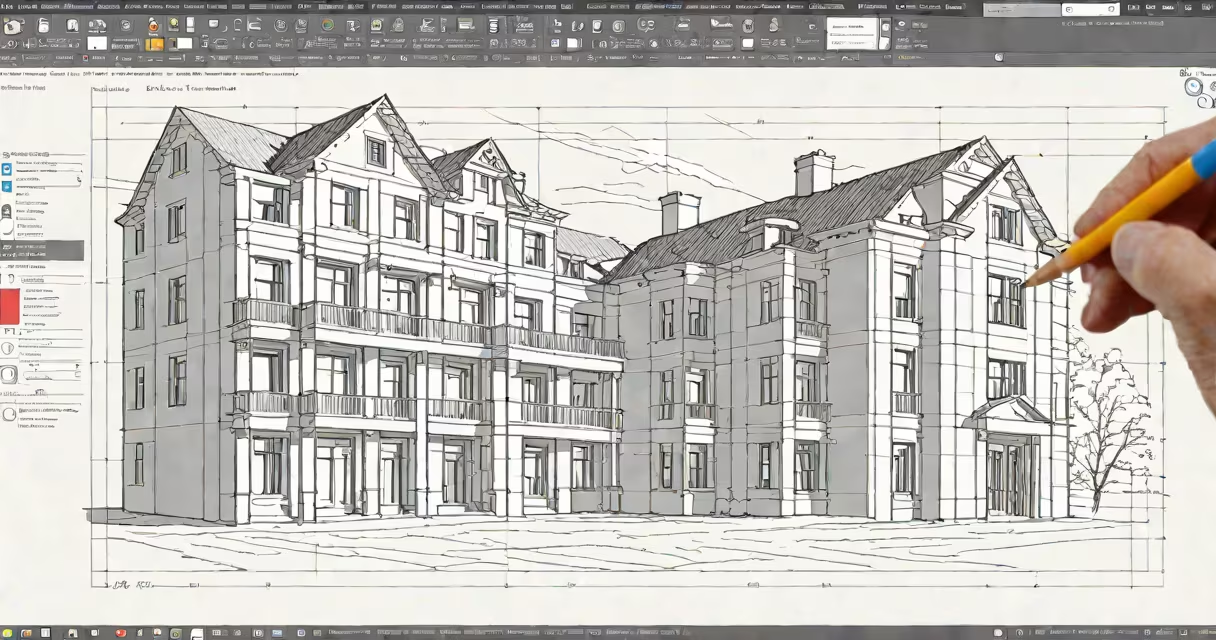
To import a STEP file into AutoCAD, use the **INSERT** command and select the STEP file, then specify insertion points and scales. This process converts the 3D model data into AutoCAD-compatible geometry.
STEP (Standard for the Exchange of Product Data) files are universal 3D CAD file formats that store complex geometry and assembly information. They're widely used for exchanging designs between different CAD programs, including AutoCAD. The format ensures data integrity during transfers, preserving dimensions, tolerances, and other critical design elements.
STEP files come in several versions, but the most common are:
AutoCAD supports all these versions, but AP242 is the most feature-rich and widely adopted for modern designs.
Engineers and designers often need to edit or reference 3D models created in other CAD programs. STEP files provide a neutral format that preserves the original design intent. For example, a mechanical engineer might receive a part designed in SolidWorks as a STEP file and need to modify it in AutoCAD for documentation or further analysis.
Many users confuse STEP files with other 3D formats like IGES or STL. While these formats also support 3D data, they lack the structured metadata and parametric capabilities of STEP., some users attempt to open STEP files directly in AutoCAD without using the INSERT command, which can lead to incomplete or corrupted geometry.
Here's how to import a STEP file into AutoCAD correctly:
INSERT in the command line and press Enter.The 3D model will now appear in your AutoCAD drawing, ready for editing or reference.
If the STEP file doesn't import correctly, check the following:
For complex assemblies, consider breaking the STEP file into smaller parts before importing to avoid performance issues.
I once worked on a project where a client sent a STEP file containing a complex assembly of over 500 parts. By breaking it into sub-assemblies and importing them separately, I avoided crashes and completed the task efficiently.