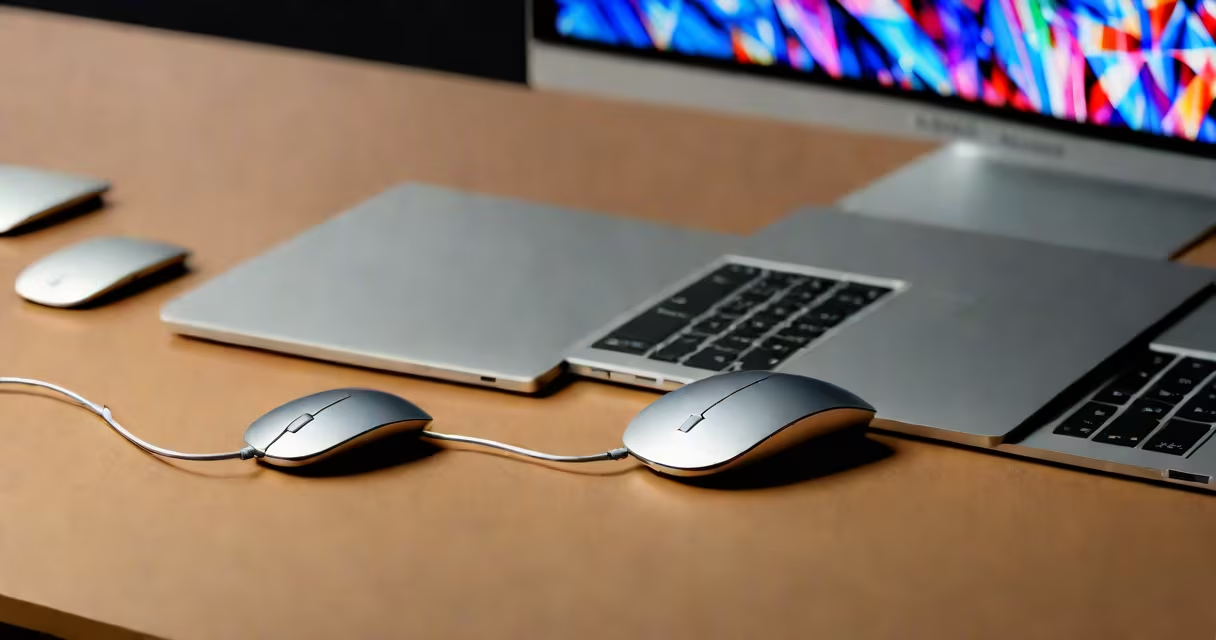
A MacBook lagging mouse is a common issue where the cursor moves slowly, jumps erratically, or doesn't respond immediately to input. This problem occurs due to software glitches, hardware incompatibilities, or interference with the connection.
Your MacBook communicates with the mouse using Bluetooth or a wired USB connection. When the mouse lags, it means the data transfer between the device and the computer is delayed. This delay can happen because of signal interference, outdated drivers, or system resource conflicts.
| Type | Cause | Example |
|---|---|---|
| Bluetooth Interference | Other wireless devices disrupting the signal | A Wi-Fi router placed near your MacBook |
| Driver Issues | Outdated or corrupted mouse drivers | A wireless mouse that worked fine but suddenly lags after a macOS update |
| System Overload | Too many applications running simultaneously | Running multiple heavy apps like video editors while using a mouse |
Most MacBook lagging mouse issues can be resolved by checking the connection, updating software, or replacing faulty hardware. Start by ensuring your mouse is fully charged or has fresh batteries. If using a wired mouse, try a different USB port. For Bluetooth mice, move them closer to the MacBook and remove any obstacles that might interfere with the signal.
Many users confuse a lagging mouse with a faulty trackpad. While both can cause slow cursor movements, a trackpad issue usually involves unresponsiveness or physical damage, whereas a mouse lag is often related to connectivity or software problems. Another common mistake is blaming the mouse itself when the issue might be with the MacBook's Bluetooth module or system settings.
I once experienced this issue with a wireless mouse that worked perfectly on a Windows PC but lagged on my MacBook. After troubleshooting, I realized the problem was due to outdated drivers. Updating them solved the issue immediately.
If none of the above solutions work, the problem might be deeper. A persistent lagging mouse could indicate a hardware issue with the MacBook's Bluetooth module or USB ports. In such cases, visiting an Apple Store or contacting Apple Support is the best course of action.
According to Apple Support, some MacBook models may require firmware updates to improve compatibility with certain mice. Always check for the latest updates in System Preferences under Software Update.