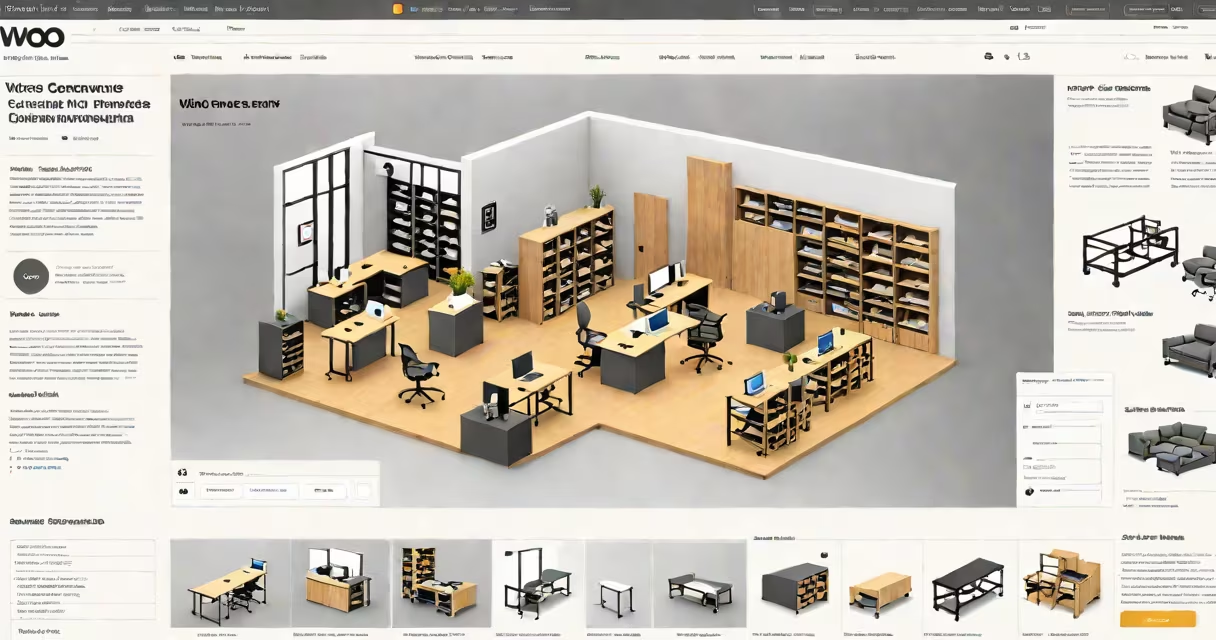
A WooCommerce template is a pre-designed layout for your online store that speeds up setup while maintaining customization options. These templates integrate with the WooCommerce plugin to create functional ecommerce websites quickly.
WooCommerce templates provide a structure for your store's appearance and functionality. They include:
When you install a WooCommerce template, it automatically configures these elements to work with your WooCommerce installation. You can then customize the template using the WordPress Customizer or page builders like Elementor.
| Template Type | Best For | Customization Level |
|---|---|---|
| Free Themes | Basic stores | Limited |
| Premium Themes | Professional stores | High |
| Niche-Specific Themes | Specialized products | Moderate |
| Multi-Purpose Themes | Flexible needs | Very High |
For example, the Storefront theme is a popular free option that provides a solid foundation for most online stores. Premium themes like Divi or Flatsome offer more advanced features and design options.
WooCommerce templates save time and ensure your store looks professional. Without a template, you'd need to design each page from scratch, which requires coding skills and significant time investment.
A common misconception is that templates limit creativity. In reality, most WooCommerce templates offer extensive customization options. For instance, you can modify layouts, colors, and even add custom code snippets to tailor the template to your brand's unique needs.
Many store owners make the mistake of prioritizing aesthetics over functionality. A visually appealing template that doesn't support essential ecommerce features can hinder your store's performance. Always check for:
For example, a template with beautiful animations might look great but could slow down your site, leading to higher bounce rates. Always test templates for performance before committing to them.
To install a WooCommerce template, go to your WordPress dashboard, go through to Appearance > Themes, and click "Add New." You can upload your template file or search for free options in the WordPress directory. Once installed, activate the theme and use the Customizer to tweak the design to match your brand.
Pro tip: Before making significant changes, use a staging site to test different templates and customizations. This allows you to experiment without affecting your live store.