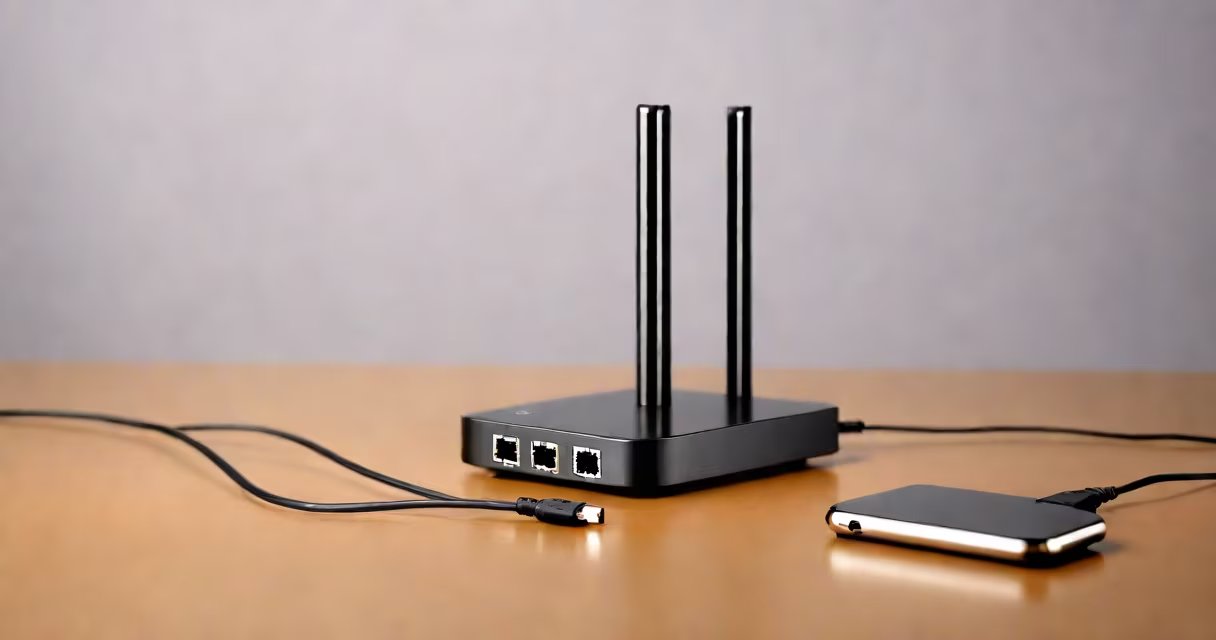
A WiFi hub for PC is a device that connects your computer to a wireless network, replacing the need for an Ethernet cable. These devices come in various forms, including USB adapters, PCIe cards, and external hubs.
Most WiFi hubs for PCs use a small antenna to receive signals from your router. The device then translates these signals into data your computer can use. Some advanced models support features like beamforming, which directs the WiFi signal directly to your device for better performance.
| Type | Connection Method | Typical Speed |
|---|---|---|
| USB Adapter | Plugs into a USB port | Up to 600 Mbps |
| PCIe Card | Installed inside the computer | Up to 1,300 Mbps |
| External Hub | Connects via Ethernet or USB | Varies by model |
Many desktop computers lack built-in WiFi capabilities. A WiFi hub for PC provides wireless connectivity without requiring expensive upgrades or professional installation. This is especially useful for gaming PCs, workstations, or older computers that need internet access.
Some users confuse WiFi hubs with routers or repeaters. Unlike routers, which create their own networks, WiFi hubs simply connect your PC to an existing network. They don't extend the range of your WiFi signal like repeaters do.
Another mistake is assuming all WiFi hubs offer the same performance. Entry-level USB adapters may struggle with high-bandwidth tasks like streaming 4K video or online gaming. For those activities, a higher-end model like a PCIe card is often necessary.
Installation varies by type. USB adapters typically require only plugging the device in and installing drivers. PCIe cards need physical installation inside the computer case. External hubs may involve connecting multiple devices.
For instance, if you're using a USB adapter, plug it into an available port, install the drivers from the manufacturer's website, and configure the settings through your operating system's network preferences. Most modern operating systems will automatically detect the new hardware and guide you through the setup process.