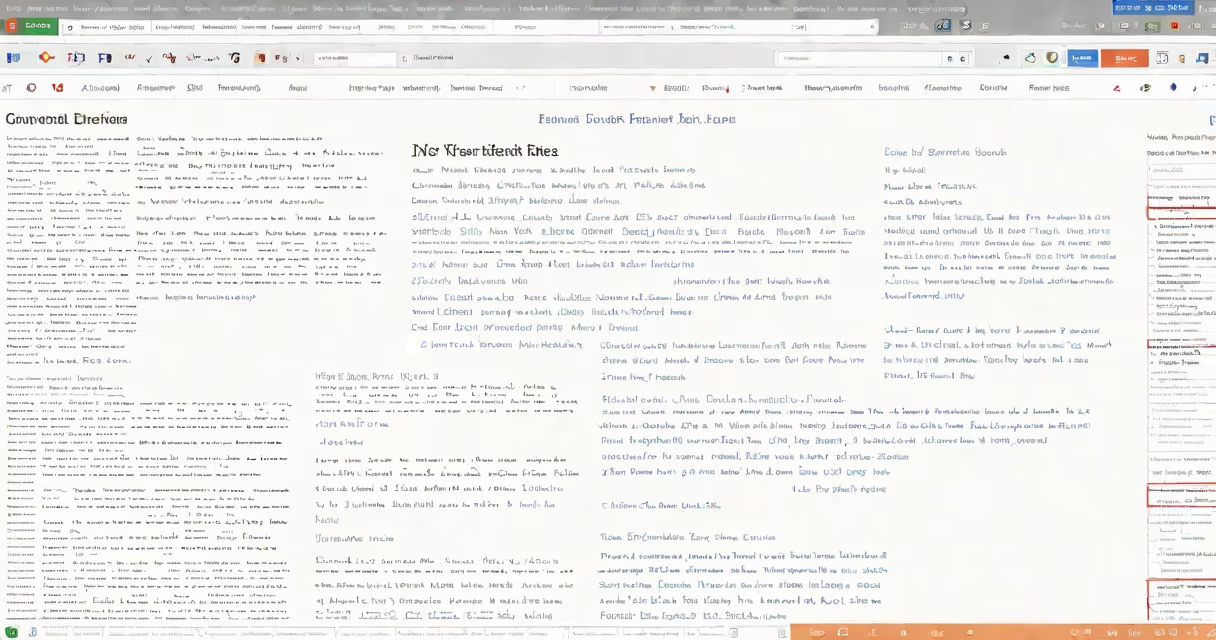
Code format Google Docs refers to applying structured text styles in Google Docs to organize and present information. These styles include headings, lists, and other formatting options that make documents easier to read and collaborate on.
Google Docs offers different formatting tools to structure text. Users can apply styles like headings, subheadings, normal text, and lists. These styles help create a hierarchical structure within the document, making it easier to go through and understand.
For example, using the "Heading 1" style for the main title and "Heading 2" for subsections creates a clear outline. Lists, such as bulleted or numbered, help break down information into digestible points.
The primary types of text formatting in Google Docs include:
Text formatting is essential in various scenarios, such as creating reports, presentations, and collaborative documents. Proper formatting enhances readability and makes the document more professional.
For instance, a business report with clear headings and subheadings allows readers to quickly find specific sections. Similarly, a collaborative document shared among team members benefits from consistent formatting to maintain clarity and organization.
One common misconception is that text formatting is only about making the document look good. While aesthetics are part of it, the primary purpose is to improve readability and structure. Another misconception is that formatting is time-consuming, but Google Docs offers quick and easy tools to apply styles efficiently.
For example, users can create custom styles that can be applied with a single click, saving time and ensuring consistency across the document., Google Docs allows users to import styles from other documents, further streamlining the formatting process.
To apply text formatting in Google Docs, follow these steps:
By following these steps, you can ensure your document is well-structured and easy to read. For more advanced formatting options, explore the "Format" menu, which offers additional tools like page breaks, columns, and custom styles.