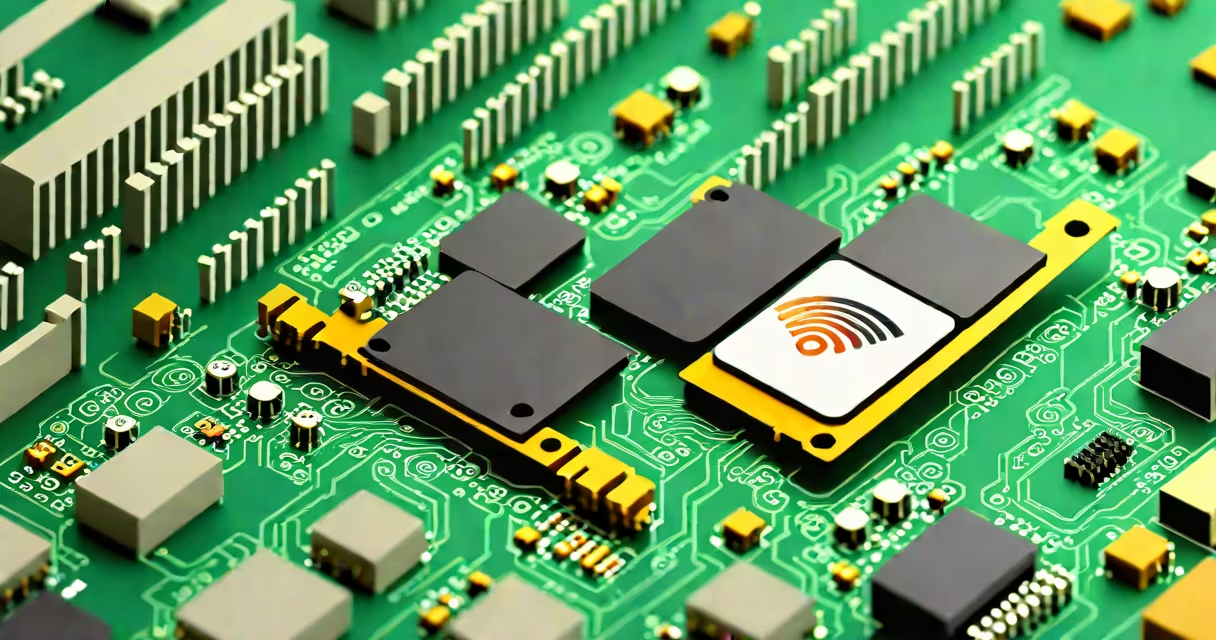
A computer wifi card is a hardware component that enables wireless internet connectivity by transmitting and receiving radio signals between your device and a router. These cards come in various forms, including internal PCIe cards, USB adapters, and mini-PCIe cards for laptops.
Wifi cards operate using radio frequencies to connect to wireless networks. They convert digital data into radio signals and transmit them via an antenna. The card then receives incoming radio signals and converts them back into digital data that your computer can process. Most modern wifi cards support multiple frequency bands, including 2.4GHz and 5GHz, offering different speeds and ranges.
There are several types of wifi cards, each suited for different devices and needs:
| Type | Connection Type | Typical Use |
|---|---|---|
| PCIe Wifi Card | Internal, inserted into a PCIe slot | Desktops and some high-performance laptops |
| USB Wifi Adapter | External, plugs into a USB port | Laptops, desktops, and other devices with USB ports |
| Mini-PCIe Card | Internal, fits into a mini-PCIe slot | Laptops and small form factor desktops |
| M.2 Wifi Card | Internal, fits into an M.2 slot | Modern laptops and compact desktops |
Installing a wifi card typically involves inserting it into an available slot on your computer's motherboard. For desktops, this is usually a PCIe slot. Laptops may have a mini-PCIe or M.2 slot, often located under a small access panel. After physical installation, drivers must be installed to ensure the operating system recognizes and utilizes the card. Most modern operating systems, including Windows and macOS, have built-in support for many wifi cards, but some may require additional drivers from the manufacturer.
When choosing a wifi card, compatibility with your device's operating system and available slots is important. For example, a PCIe wifi card won't work in a laptop without an available PCIe slot. Similarly, an M.2 wifi card requires an M.2 slot that supports the necessary wireless standards.
One common misconception is that all wifi cards offer the same performance. In reality, performance varies based on the card's specifications, such as the wireless standard supported (e.g., Wi-Fi 5, Wi-Fi 6), the number of antennas, and the maximum data transfer rates. For instance, a Wi-Fi 6 card can offer speeds up to 9.6 Gbps, while older standards like Wi-Fi 5 max out at 3.5 Gbps.
Another misunderstanding is that external USB wifi adapters are always inferior to internal cards. While some USB adapters have limitations, such as lower range due to their antenna size, high-quality USB adapters can match or even exceed the performance of internal cards, especially those with external antennas.
I recently upgraded my desktop computer's wifi capabilities by installing a PCIe Wi-Fi 6 card. The installation process was straightforward: I opened the computer case, located an available PCIe x1 slot, inserted the card, and secured it with a screw. After installing the necessary drivers from the manufacturer's website, my computer recognized the new card immediately. The upgrade resulted in noticeably faster internet speeds and more reliable connections, especially in areas of my home where the signal had previously been weak.
For those experiencing connectivity issues, upgrading to a more modern wifi card can improve performance. However, it's essential to ensure your router also supports the same wireless standards to fully use the card's capabilities. Pairing a Wi-Fi 6 card with a Wi-Fi 5 router, for example, will limit the connection to Wi-Fi 5 speeds.
If you're looking to improve your computer's wireless capabilities, consider the type of card that best fits your device and needs. Whether it's a high-performance PCIe card for a desktop or a portable USB adapter for a laptop, upgrading your wifi card can provide a noticeable improvement in internet connectivity and speed.