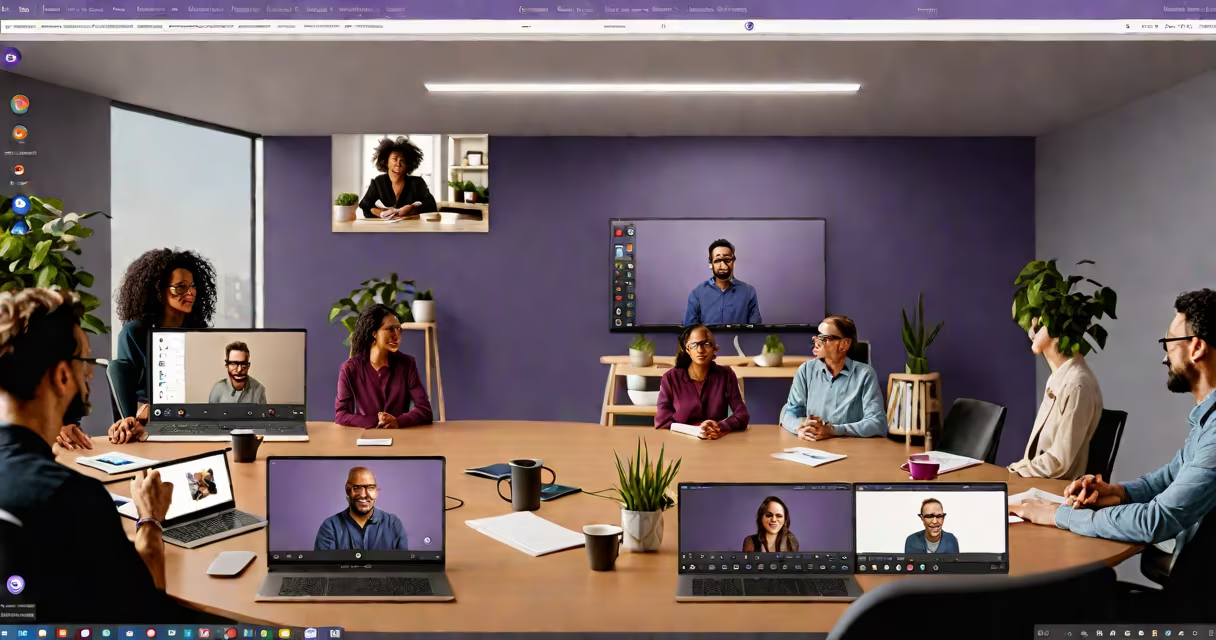
To set up a Teams meeting, open Microsoft Teams, click "New Meeting" in the calendar view, fill in the meeting details, and send invitations. This creates a scheduled video conference accessible to all invited participants.
Microsoft Teams is a collaboration platform that integrates chat, video conferencing, and file storage. The meeting setup process varies slightly depending on mobile app. Here's how to do it in each version.
Open Microsoft Teams and go to the Calendar tab on the left sidebar. Click "New Meeting" at the top right. A form will appear where you can add the meeting title, required attendees, optional attendees, and a location if needed. You can also add a message to the invitees.
Set the start time and end time using the date and time pickers. Click "Repeat" if you want to create a recurring meeting. Add any additional details like an agenda or attachments in the description box. When you're ready, click "Send" to distribute the meeting invites.
The meeting will appear in your calendar, and the invited participants will receive an email with a link to join the meeting. They can join through the Teams app, web browser, or mobile device.
Sign in to Microsoft Teams through your web browser and go through to the Calendar tab. Click "New Meeting" in the top right corner. Fill in the meeting details including title, attendees, and time. Click "Schedule" to create the meeting.
Participants will receive an email invitation with a link to join the meeting. They can join through the Teams web app or download the desktop/mobile app if they prefer.
Open the Teams app on your mobile device and tap the Calendar icon at the bottom. Tap the "+" button to create a new meeting. Enter the meeting details including title, attendees, and time. Tap "Done" to schedule the meeting.
Invited participants will receive a notification and email with a link to join the meeting. They can join through the mobile app or any other supported device.
Teams offers several features to improve your meetings. You can enable live captions, record the meeting, and share your screen during the call. Participants can use the chat function to send messages during the meeting.
For large meetings, you can use the "Live Event" feature to broadcast to up to 10,000 attendees. This is useful for webinars, company-wide announcements, or training sessions.
If you encounter issues setting up a meeting, ensure you have the correct permissions. Only users with a valid license can create meetings. Check your internet connection and make sure you're using the latest version of Teams.
If participants have trouble joining, ask them to check their email for the invitation link. They may need to sign in with their organizational account to access the meeting.
For more detailed instructions, refer to the official Microsoft Teams documentation or contact your IT support team.
Understanding how to set up a Teams meeting is essential for effective collaboration in today's work environment. With these steps, you can easily schedule and manage your meetings using Microsoft Teams.