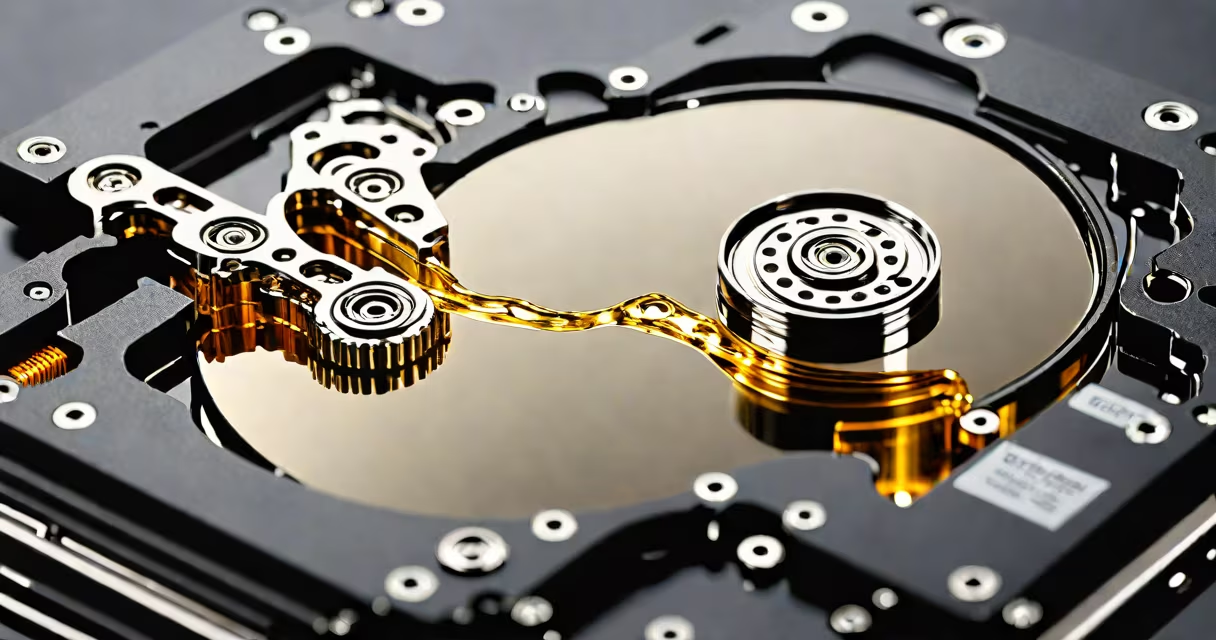
Removing a partition on a hard drive deletes that section's formatting and data, merging its space into unallocated storage. This process differs from simply deleting files-it erases the partition's structure entirely.
Partitions act as containers for file systems on a physical drive. When you remove a partition, the operating system no longer recognizes that section as usable storage until reformatted. The space becomes "unallocated," available for new partitions or extensions.
Most consumer systems use two types:
| Type | Description | Common Use |
|---|---|---|
| Primary Partition | Can contain one file system and be bootable | Operating system installation |
| Logical Partition | Exists within an extended partition, not bootable | Additional storage volumes |
Modern systems also support GPT partitions, which allow more than four partitions without complex workarounds.
Common scenarios include:
I once removed a partition to extend my primary drive after realizing I had allocated too much space to a secondary partition for temporary files. The process freed up 200GB of usable space.
To remove a partition in Windows:
On macOS, use Disk Utility's "Erase" function for similar results. Linux users typically employ command-line tools like fdisk or gparted.
Always back up critical data before modifying partitions. Accidental deletions can occur even with careful selection. Some partitions contain recovery environments or system files essential for booting-removing these may require reinstallation of the operating system.
Removing partitions is a useful tool for storage management when used correctly. Always verify selections before confirming deletions, and maintain current backups of important data.