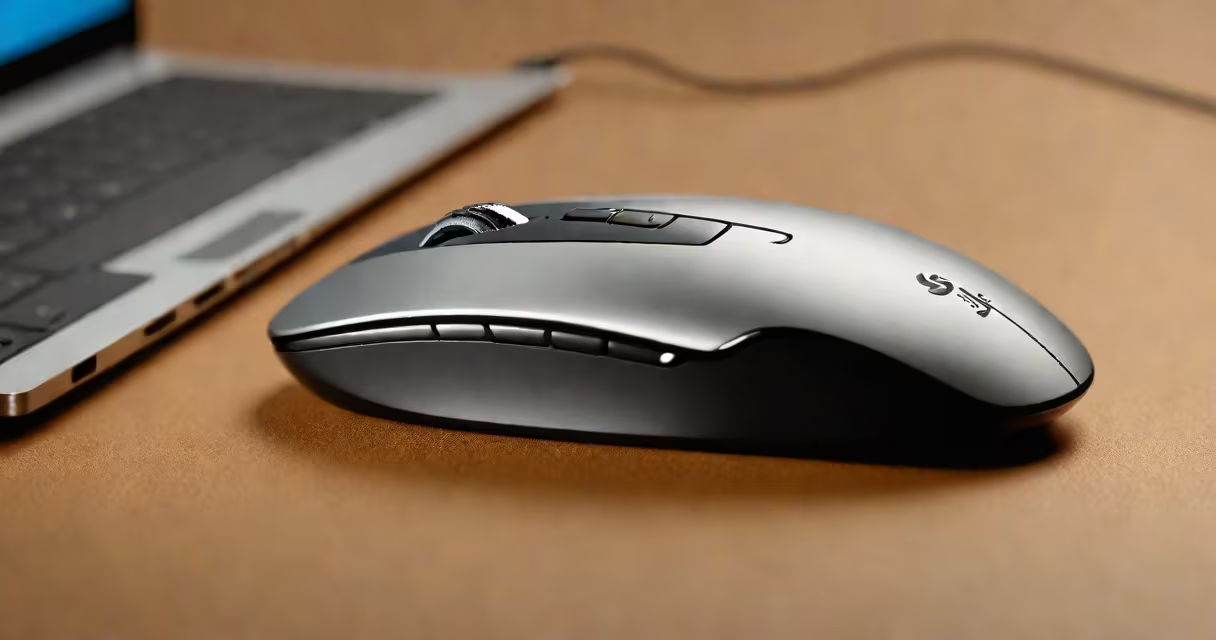
To sync a Logitech mouse to its dongle, insert the receiver into a USB port, turn on the mouse, and press the sync button on both devices until the LED light stops blinking. This process pairs the mouse with the dongle via a 2.4GHz wireless connection.
The dongle acts as a wireless receiver, translating signals from the mouse into USB inputs your computer can understand. When you press the sync buttons, the mouse and dongle establish a secure connection using Logitech's proprietary wireless protocol.
| Dongle Type | Compatibility | Connection Method |
|---|---|---|
| Unifying Receiver | Most Logitech wireless mice and keyboards | 2.4GHz wireless |
| Lightspeed Receiver | Select high-performance mice | 1ms wireless |
| Bluetooth | Some newer models | Bluetooth |
You'll need to sync your mouse to its dongle when setting up a new device, replacing a lost dongle, or if the connection drops. The dongle provides a more stable and lower-latency connection than Bluetooth, which is why most Logitech wireless mice use this method.
Many users confuse the Unifying Receiver with a standard Bluetooth adapter. Unlike Bluetooth, the Unifying Receiver uses a dedicated 2.4GHz wireless connection, offering better performance and fewer interferences., some users think they can pair multiple mice to a single dongle, but while the Unifying Receiver supports multiple devices, each must be synced individually.
I've personally synced several Logitech mice this way, including the popular MX Master series. The process is straightforward and usually takes less than a minute.