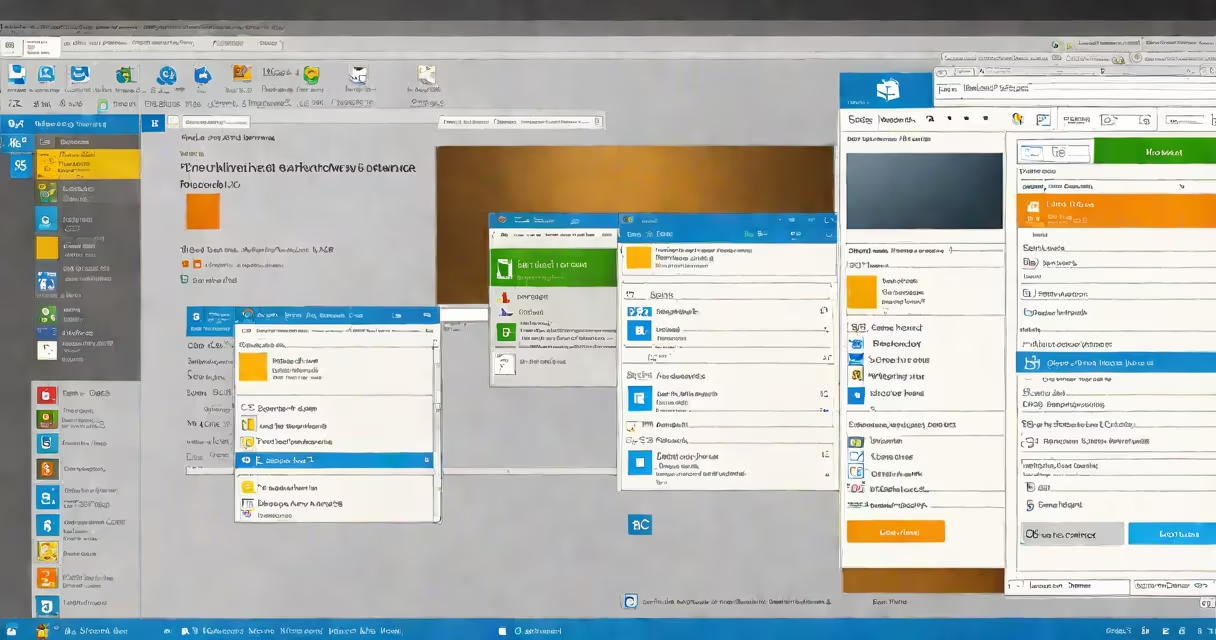
To determine your Windows version, open Settings, go to System > About, and look for "Version" under Windows specifications. This tells you another version.
Windows includes built-in tools to display your operating system version. These tools read version information stored in system files and registry keys. The most straightforward method uses the Settings app, which shows the major version number (e.g., 22H2 for Windows 11) and the edition (Home, Pro, etc.).
Microsoft releases different versions of Windows, typically distinguished by year and feature updates. Here's a comparison of recent versions:
| Version | Release Year | Key Features |
|---|---|---|
| Windows 10 | 2015 | Start menu, virtual desktops, Cortana |
| Windows 11 | 2021 | Redesigned Start menu, Widgets, Android app support |
Knowing your Windows version helps ensure compatibility with software and hardware. For example, some apps require Windows 11's specific features, while others may only work on Windows 10. Businesses often standardize on a particular version for security and support reasons.
A common mistake is confusing the version number with the edition (e.g., thinking "Pro" is a version rather than an edition). The version number indicates the release year and update level, while the edition (Home, Pro, Enterprise) determines available features.
To find your Windows version, follow these steps:
Win + I to open Settings.For example, if you see "Version 22H2," you're running Windows 11 released in the second half of 2022. If you see "Version 21H2," you're on Windows 10's November 2021 update.
If you need more detailed information, such as the build number, you can use the Command Prompt. Open it by typing cmd in the Start menu, then type winver and press Enter. This opens a window with the full version details, including the build number.
I once helped a friend troubleshoot a software issue by checking their Windows version. They were running an outdated version of Windows 10, which didn't support the latest features of the software they wanted to use. Updating to the latest version resolved the issue.
Many people confuse the Windows version with the edition. The version refers to the release year and update level (e.g., 22H2), while the edition refers to the feature set (e.g., Home, Pro, Enterprise). For example, Windows 10 Pro and Windows 11 Pro are different versions but share the same edition name.
Another misconception is that the newest version is always the best. While newer versions often include performance improvements and security updates, some users prefer older versions due to familiarity or specific software requirements.
For more details on the newest Windows 10 version, see here. If you're unsure how to check your Windows version, follow this guide.