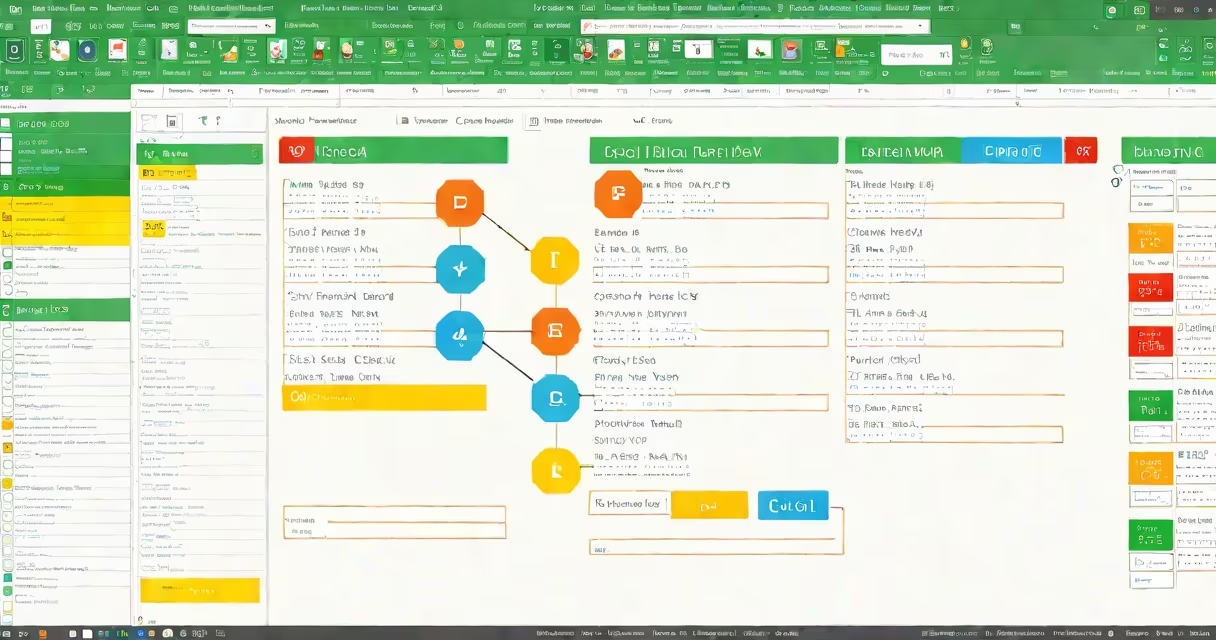
To create a list in Excel, select your data range, go to the Data tab, click "From Table/Range," and choose "My table has headers." This converts your selection into an Excel table with automatic filtering and sorting.
Excel lists are changing arrays that automatically expand as you add data. They support features like sorting, filtering, and structured references. Lists are stored as Excel tables, which provide additional functionality compared to regular ranges.
Excel supports several types of lists:
Lists are essential for data organization in spreadsheets. A client list in Excel helps businesses track customer information efficiently. Lists enable quick sorting and filtering, making data analysis more efficient.
For example, a sales team might create a product catalog list with columns for item number, description, price, and quantity. This allows them to sort products by price or filter by category.
Many users confuse Excel lists with simple data ranges. Unlike regular ranges, lists have structured headers and can expand automatically when new data is added. Another misconception is that lists require complex formulas - they actually simplify data management.
I once helped a colleague organize inventory data. By converting their range to a list, we gained access to built-in sorting and filtering tools, saving hours of manual work each month.
For example, if you have a list of employee names in column A, typing a new name in cell A10 will automatically include it in your table, provided there are no blank rows between your existing data and the new entry.