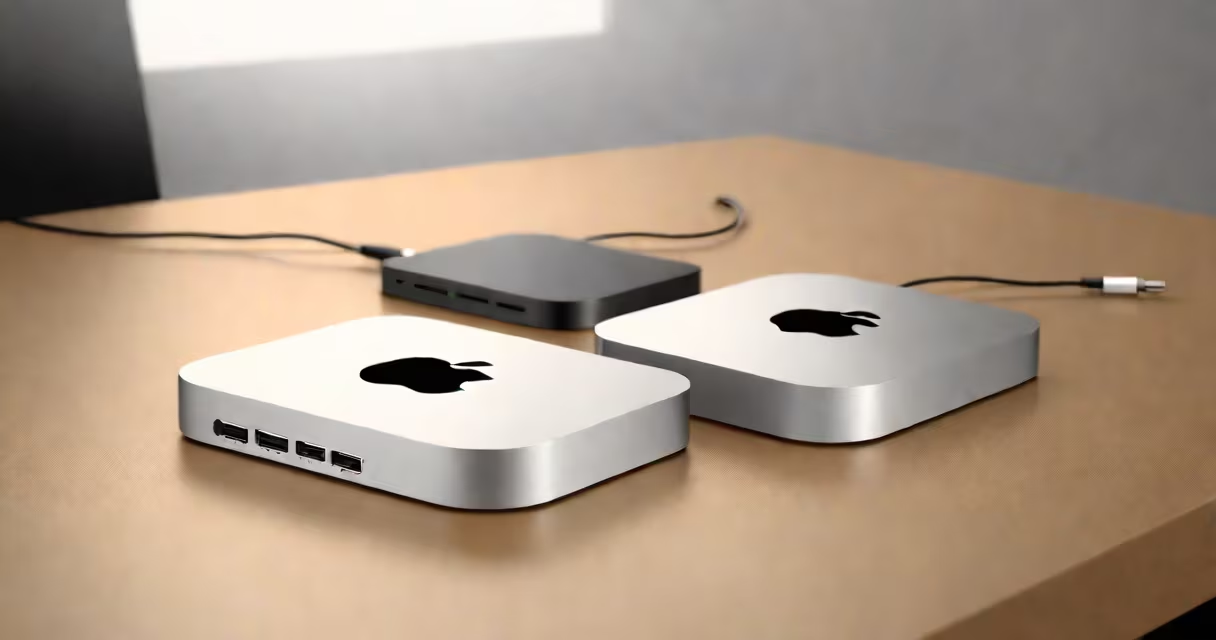
An upgrade Mac Mini involves replacing hardware components or installing newer software to improve performance, extend functionality, or accommodate new operating systems.
Upgrades fall into two categories: hardware and software. Hardware upgrades involve physical component replacements, while software upgrades focus on updating the operating system or installed applications.
| Upgrade Type | Components/Examples | Difficulty |
|---|---|---|
| Hardware | RAM, storage (SSD), cooling system | Moderate to high |
| Software | macOS updates, driver installations | Low to moderate |
Most Mac Mini models allow RAM and storage upgrades. For instance, the M1 Mac Mini supports up to 64GB of RAM, while older Intel-based models may have lower limits. Storage upgrades typically involve replacing the built-in SSD with a larger or faster model.
Upgrading the cooling system can also improve performance, especially for models prone to overheating. This might involve adding thermal pads or replacing the internal fan.
Software upgrades primarily involve installing the latest version of macOS. Apple provides regular updates that improve security, add new features, and improve compatibility with newer applications. For example, upgrading to macOS Ventura introduces Stage Manager, a new productivity feature.
Driver updates are also important, especially for peripherals like monitors or external GPUs. These updates ensure optimal performance and compatibility with the latest software.
One common misconception is that all Mac Mini models support the same upgrades. In reality, Apple Silicon models (like the M1) have different upgrade paths compared to Intel-based models. For instance, the M1 Mac Mini's RAM is soldered to the motherboard, making it non-upgradable.
Another mistake is assuming that upgrading the storage will improve performance if the original SSD is already fast. While increasing storage capacity is beneficial, the performance gain may be minimal compared to upgrading from a traditional hard drive to an SSD.
When upgrading your Mac Mini, always use compatible components and follow safety precautions. Consult the official Apple support website or a professional technician if you're unsure about any step in the process.
For those considering a used mac mini, check availability and compatibility before attempting any upgrades. Ensure the model supports the upgrades you plan to make, and verify the condition of existing components.
If you're looking to connect your Mac Mini to a new monitor, ensure compatibility by checking the supported resolutions and ports. Some monitors may require adapters or specific cables to work with your Mac Mini.