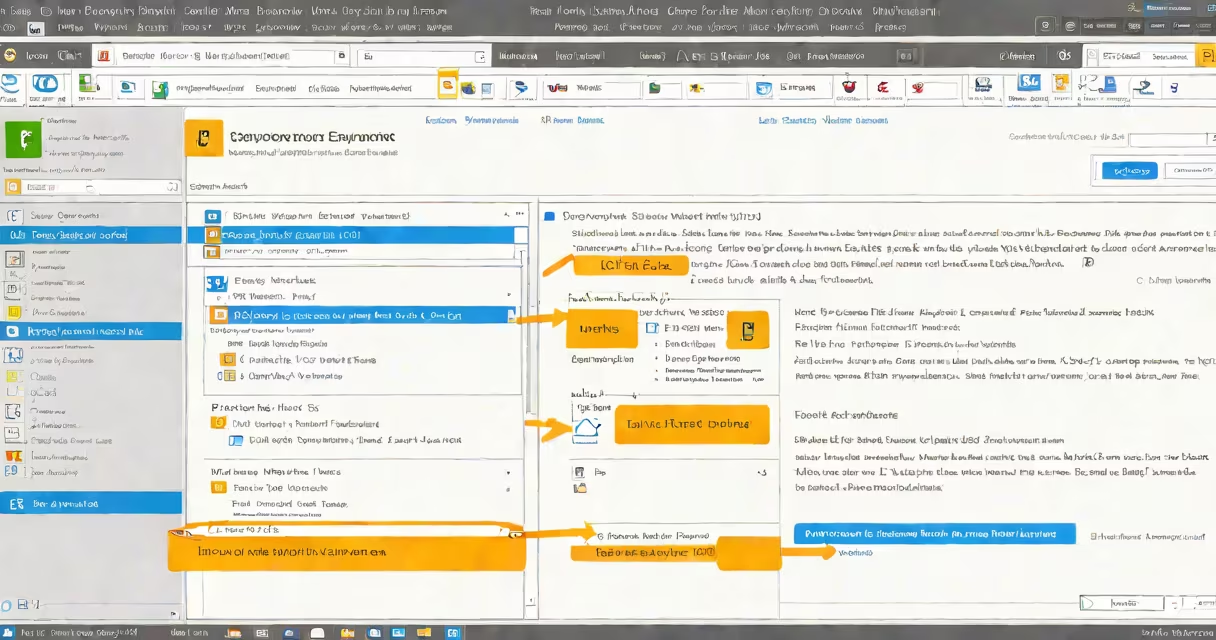
In Outlook, "encrypt only" means sending an email with encryption that doesn't require the recipient to decrypt it. This ensures your message stays private during transit but lets the recipient read it normally.
When you select "encrypt only," Outlook uses Transport Layer Security (TLS) to scramble your email while it moves between servers. TLS is the same technology that secures websites starting with "https://." The recipient's email provider must support TLS for the encryption to work.
Outlook offers three encryption options:
| Option | Requirement | Recipient Action |
|---|---|---|
| Encrypt Only | TLS support | None needed |
| Encrypt and Prevent Forwarding | TLS support | None needed |
| Encrypt with S/MIME | S/MIME certificate | Must have a compatible certificate |
Unlike S/MIME encryption, which requires both sender and recipient to have certificates, "encrypt only" relies solely on TLS. This makes it simpler but less secure than S/MIME.
People use "encrypt only" when they want basic protection without extra steps for the recipient. For example, a small business sending invoices might use it to keep financial details private during transit. However, if the recipient's email provider doesn't support TLS, the email won't be encrypted.
Many assume "encrypt only" fully secures emails against all threats. In reality, it only protects messages in transit-not at rest. If an attacker gains access to the recipient's inbox, they can still read the email. For stronger protection, use S/MIME or other end-to-end encryption methods.
I once sent an encrypted email to a client using "encrypt only." Their provider didn't support TLS, so the message arrived unencrypted. After switching to S/MIME, their reply confirmed the encryption worked as expected.
To use "encrypt only" in Outlook:
This setting is available in Outlook for Microsoft 365, Outlook 2019, and Outlook 2016.
For stricter security, consider these alternatives:
S/MIME is more complex but offers better protection. However, both sender and recipient must have compatible certificates installed.
Encrypt only has key limitations:
For sensitive information, use stronger encryption methods or additional security measures.
"Encrypt only" in Outlook provides basic email security during transit without requiring recipient action. While useful for general privacy, it lacks the robustness of S/MIME or other advanced encryption methods. For critical communications, choose a stronger option to ensure full protection.