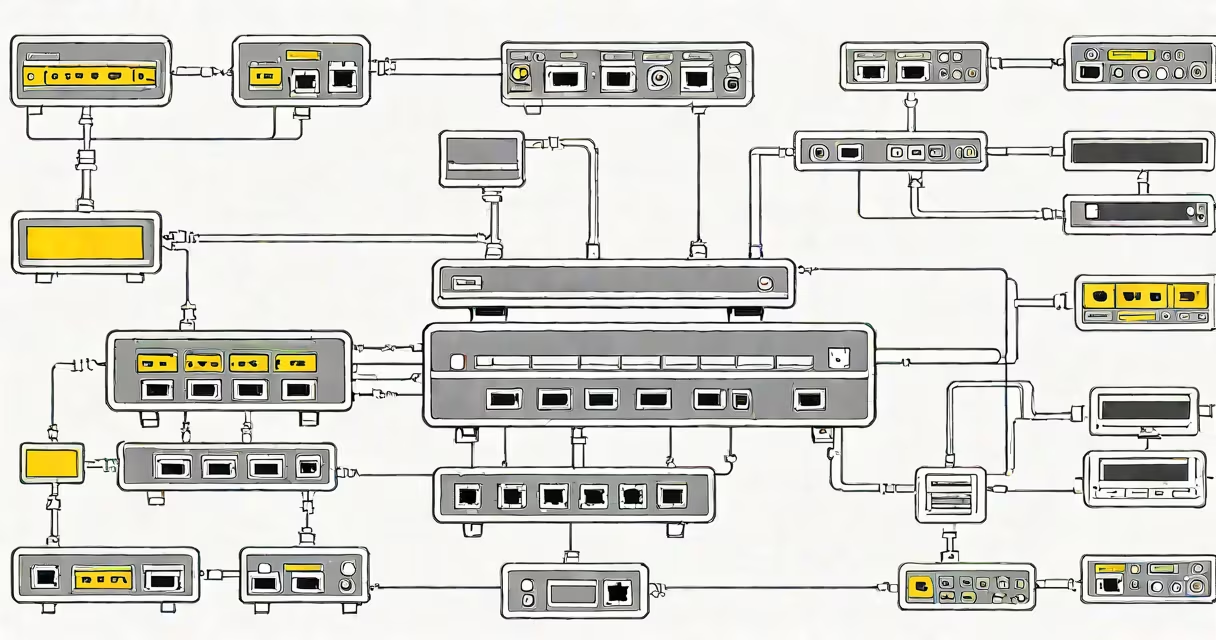
Port forwarding directs incoming internet traffic to specific devices on your local network by configuring your router. It bypasses the router's firewall to allow external devices to access services hosted on your network.
Your router uses Network Address Translation (NAT) to assign private IP addresses to devices on your network. When data arrives from the internet, the router doesn't know which device to send it to unless you set up port forwarding.
Port forwarding creates a rule that tells the router to forward incoming traffic on specific ports to a particular device. For example, if you host a game server on your computer, you'd forward the game's port (like UDP port 25565 for Minecraft) to your computer's local IP address.
| Type | Description | Common Use Case |
|---|---|---|
| Local Port Forwarding | Redirects traffic from one port to another on the same machine | Accessing a local web server from a different port |
| Remote Port Forwarding | Redirects traffic from a remote machine to your local machine | Accessing a remote database as if it were local |
| Changing Port Forwarding | Creates a secure tunnel for multiple connections | Securely accessing multiple services on a remote network |
Port forwarding is commonly used for:
Many people use port forwarding to improve their online gaming experience. By forwarding the game's port to their computer, they reduce lag and improve connection stability. For example, if you're playing an online shooter, forwarding the game's UDP port (like 3658 for Call of Duty) can reduce latency.
Many people confuse port forwarding with opening ports in the firewall. Opening ports simply allows traffic through the firewall, while port forwarding actively redirects that traffic to a specific device. Another misconception is that port forwarding is always necessary for online gaming. While it can help, many games work fine without it.
Some people also think port forwarding is dangerous because it exposes your network to the internet. However, when configured properly, it only opens specific ports to specific devices, minimizing security risks. According to Cisco, proper port forwarding configuration is essential for maintaining network security.
To set up port forwarding, you'll need to access your router's configuration page. This usually involves entering your router's IP address (often 192.168.1.1 or 192.168.0.1) into a web browser. From there, look for the port forwarding section, typically under advanced settings or firewall settings.
Once you find the port forwarding section, you'll need to enter the following information:
After entering this information, save your changes and test the connection. If everything is set up correctly, incoming traffic on the specified port should be forwarded to the correct device on your network.
I once helped a friend set up port forwarding for his Minecraft server. We forwarded UDP port 25565 to his computer's local IP address. After saving the changes, we tested the connection and were able to join his server from another network. It was a straightforward process that improved his gaming experience.