A gaming PC requires specific hardware components, tools, and software to assemble a functional system. This checklist covers everything needed for a successful build.
At minimum, a gaming PC needs seven core parts. Most builds include additional components for better performance or aesthetics.
| Component | Purpose | Example Models |
|---|---|---|
| CPU (Processor) | Performs calculations and runs applications | Intel Core i5-13600K, AMD Ryzen 7 7700X |
| GPU (Graphics Card) | Renders images, video, and animations | NVIDIA GeForce RTX 4070, AMD Radeon RX 7800 XT |
| Motherboard | Connects and allows communication between components | ASUS ROG Strix B760-A, MSI MAG B650 TOPOMAX |
| RAM (Memory) | Stores temporary data for faster access | Corsair Vengeance 32GB (2x16GB) DDR5-6000, G.Skill Trident Z5 RGB 32GB (2x16GB) DDR5-6400 |
| Storage (SSD/NVMe) | Permanently stores data and programs | Samsung 980 Pro 1TB PCIe 4.0 NVMe SSD, WD Black SN850X 2TB PCIe 4.0 NVMe SSD |
| Power Supply (PSU) | Supplies power to components | Corsair RM850x (850 Watt), Seasonic FOCUS GX-750 (750 Watt) |
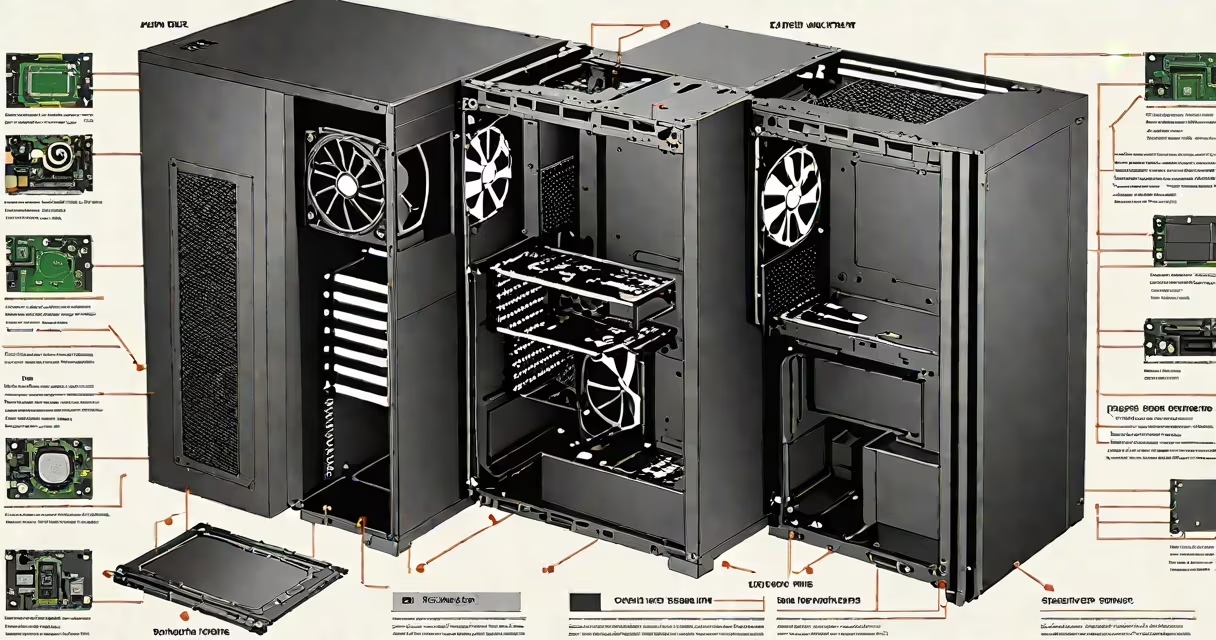
| PC Case | Houses and protects components | Lian Li Lancool 216, Fractal Design Meshify C |
Many builders also include cooling solutions, such as air coolers, liquid coolers, or case fans, for better thermal management. RGB lighting and additional storage drives are common upgrades.
Basic tools include a Phillips-head screwdriver, anti-static wrist strap, and zip ties for cable management. Magnetic screw drivers and screw organizers make the process easier.
After assembling the PC, install the operating system (OS), such as Windows 11. Download and install motherboard drivers, GPU drivers, and other necessary software from the manufacturers' websites.
Many first-time builders forget to check compatibility between components, such as ensuring the motherboard supports the chosen CPU and RAM. Others overlook proper cable management, leading to poor airflow and overheating.
One mistake I made during my first build was not installing the CPU cooler before placing the motherboard in the case. This made it difficult to access the cooler's mounting mechanism. Learning from this experience, I now recommend installing the cooler onto the CPU while the motherboard is still on its box.