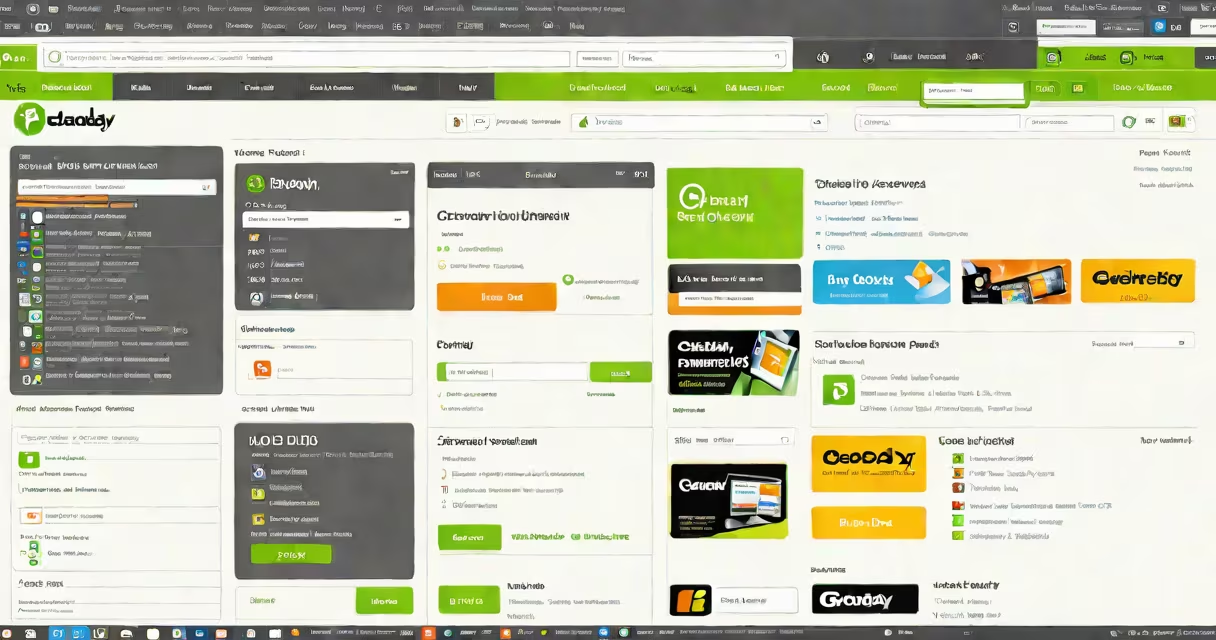
To access cPanel in GoDaddy, log in to your GoDaddy account, select "Web Hosting" from the product list, and click "Manage" next to your hosting account. Then, choose "cPanel Admin" from the quick settings menu.
GoDaddy's cPanel interface provides tools for managing your website files, databases, domains, and email accounts. It's the industry-standard control panel for shared hosting environments, offering both beginner-friendly tools and advanced options for experienced users.
After logging in to your GoDaddy account, locate the "My Products" page. Under the "Web Hosting" section, find the hosting account you want to manage. Click the three-dot menu icon and select "Manage." This takes you to your hosting dashboard, where you'll see the "cPanel Admin" option.
| Category | Key Features |
|---|---|
| Files | File Manager, Backups, FTP Accounts |
| Databases | MySQL Databases, phpMyAdmin |
| Domains | Zone Editor, Redirects |
| Email Accounts, Forwarders, Autoresponders | |
| Metrics | Visitors, Errors, Raw Access |
Some users report difficulties finding the cPanel login button. GoDaddy occasionally updates its dashboard layout, which can temporarily move interface elements. If you can't locate the "cPanel Admin" option, check for updates in GoDaddy's help center or contact customer support.
Another frequent issue is browser compatibility. Ensure you're using an up-to-date browser like Chrome, Firefox, or Edge for the best experience. Clearing your browser cache can also resolve display problems.
When you first access cPanel, take time to explore the interface. The "Preferences" section lets you customize your cPanel theme and language. Set up essential features like email accounts and database backups early to protect your site.
For security, enable two-factor authentication in the "Security" section. This adds an extra layer of protection to your hosting account. GoDaddy's documentation provides detailed guides for each cPanel feature.
Remember, while cPanel offers useful tools, always back up your site before making major changes. Test modifications in a staging environment when possible to avoid disrupting your live site.